 极客教程
极客教程如何使用CanvasJS实现瀑布图
在本文中,我们将学习如何使用JavaScript和CanvasJS插件实现瀑布图。
瀑布图与柱状图非常相似,唯一的区别是下一根柱子的基准值是上一根柱子的结束值。瀑布图可以帮助可视化正(上升)或负(下降)值在序列中的累计或总体效果。
用途:
- 它有助于计算一系列累加或累减值的运行总值。
- 它有助于理解上升(添加值)和下降(减去值)对净收入的影响,它们具有不同的颜色代码。
- 广泛用于展示一段时间内的利润或损失。
语法:
new CanvasJS.Chart($("#ID"), {
 data: [{
     type: "waterfall",
     dataPoints: [
       {...},
     ]
  }]
});
方法:
- 在 HTML 设计中,使用
div标签来显示瀑布图。 - 在代码中包含上述 CDN 链接以使用插件功能。
- 在代码的
script部分,通过设置库的数据和其他选项属性来实例化 CanvasJS 对象。 - 使用 Canvas JS 插件的 render() 方法渲染图表。
- 根据需要设置图表的其他属性或属性类型,如 indexLabelPlacement、indexLabelOrientation、fillOpacity、bevelEnabled、risingColor 和
fallingColor来进行样式设置。 - 根据可用于代码实现的数据制作图表。
CDN 链接:
<script src="https://canvasjs.com/assets/script/canvasjs.min.js"></script>
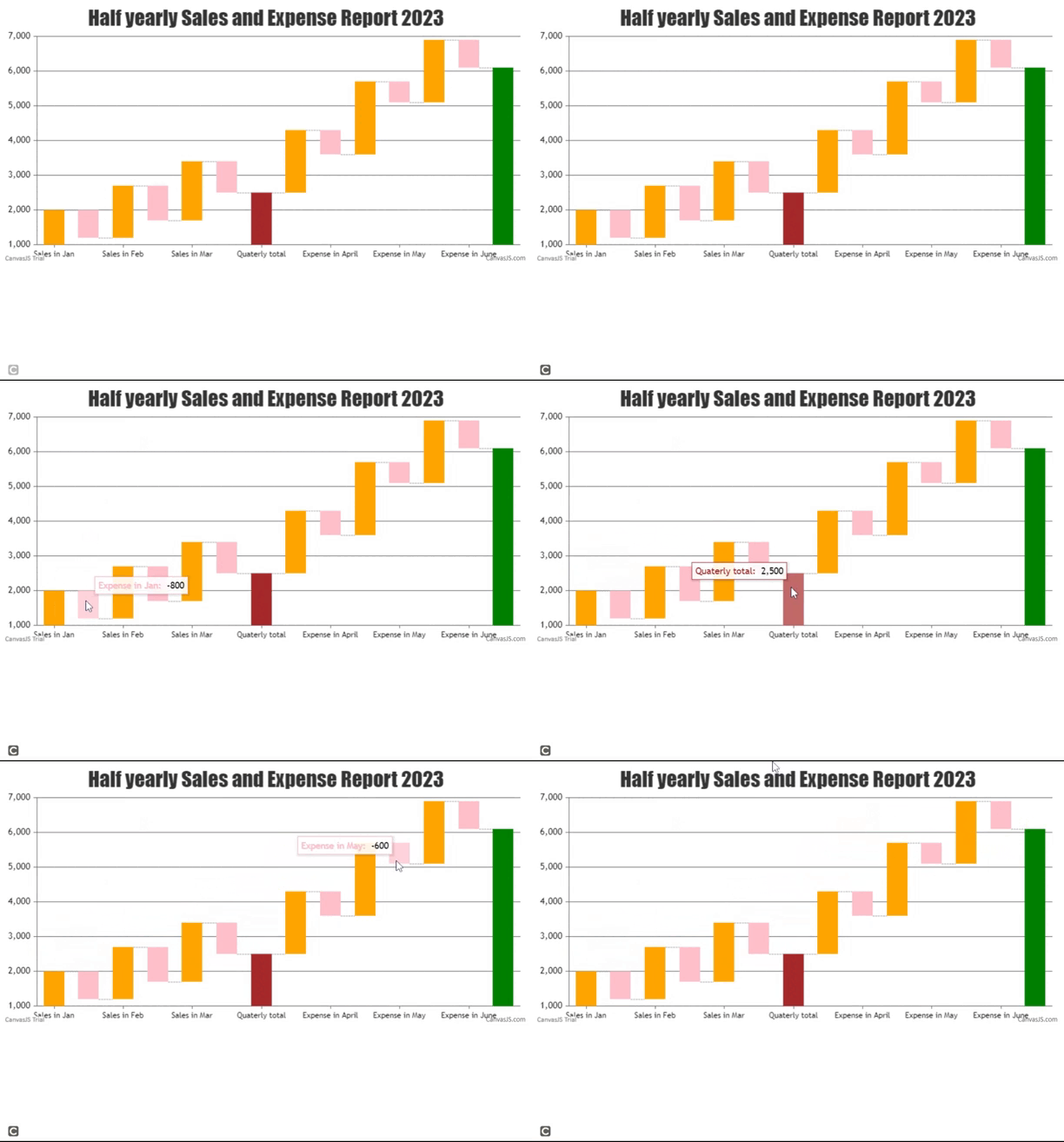
示例 1: 下面的代码演示了使用 Canvas JS 插件制作简单瀑布图的示例。它显示了2023年的销售额和支出,橙色柱表示销售额,粉色柱表示支出,并且通过使用 isCumulativeSum 选项设置,在一系列增加和减少的值之后显示总值。
<!DOCTYPE HTML>
<html>
<head>
    <meta charset="UTF-8">

    <script src="https://canvasjs.com/assets/script/canvasjs.min.js">
    </script>
</head>
<body>
    <div id="chartID" style="height:400px; max-width:950px;
            margin:0px auto;">
    </div>
    <script>
        window.onload = function () {
            var chart = new CanvasJS.Chart("chartID", {
                title: {
                    text: "Half yearly Sales and Expense Report 2023"
                },
                data: [
                    {
                        type: "waterfall",
                        risingColor: "orange",
                        fallingColor: "pink",
                        dataPoints: [
                            { label: "Sales in Jan", y: 2000 },
                            { label: "Expense in Jan", y: -800 },
                            { label: "Sales in Feb", y: 1500 },
                            { label: "Expense in Feb", y: -1000 },
                            { label: "Sales in Mar", y: 1700 },
                            { label: "Expense in Mar", y: -900 },
                            {
                                label: "Quaterly total",
                                isIntermediateSum: true, color: "brown"
                            },
                            { label: "Sales in April", y: 1800 },
                            { label: "Expense in April", y: -700 },
                            { label: "Sales in May", y: 2100 },
                            { label: "Expense in May", y: -600 },
                            { label: "Sales in June", y: 1800 },
                            { label: "Expense in June", y: -800 },
                            // automatically calculates the sum of the dataPoints
                            {
                                label: "Total", isCumulativeSum: true,
                                color: "green"
                            }
                        ]// end dataPoints
                    }
                ]// end data
            }); //end CanvasJS.Chart
            chart.render();
        }// end window onload
    </script>
</body>
</html>
输出:
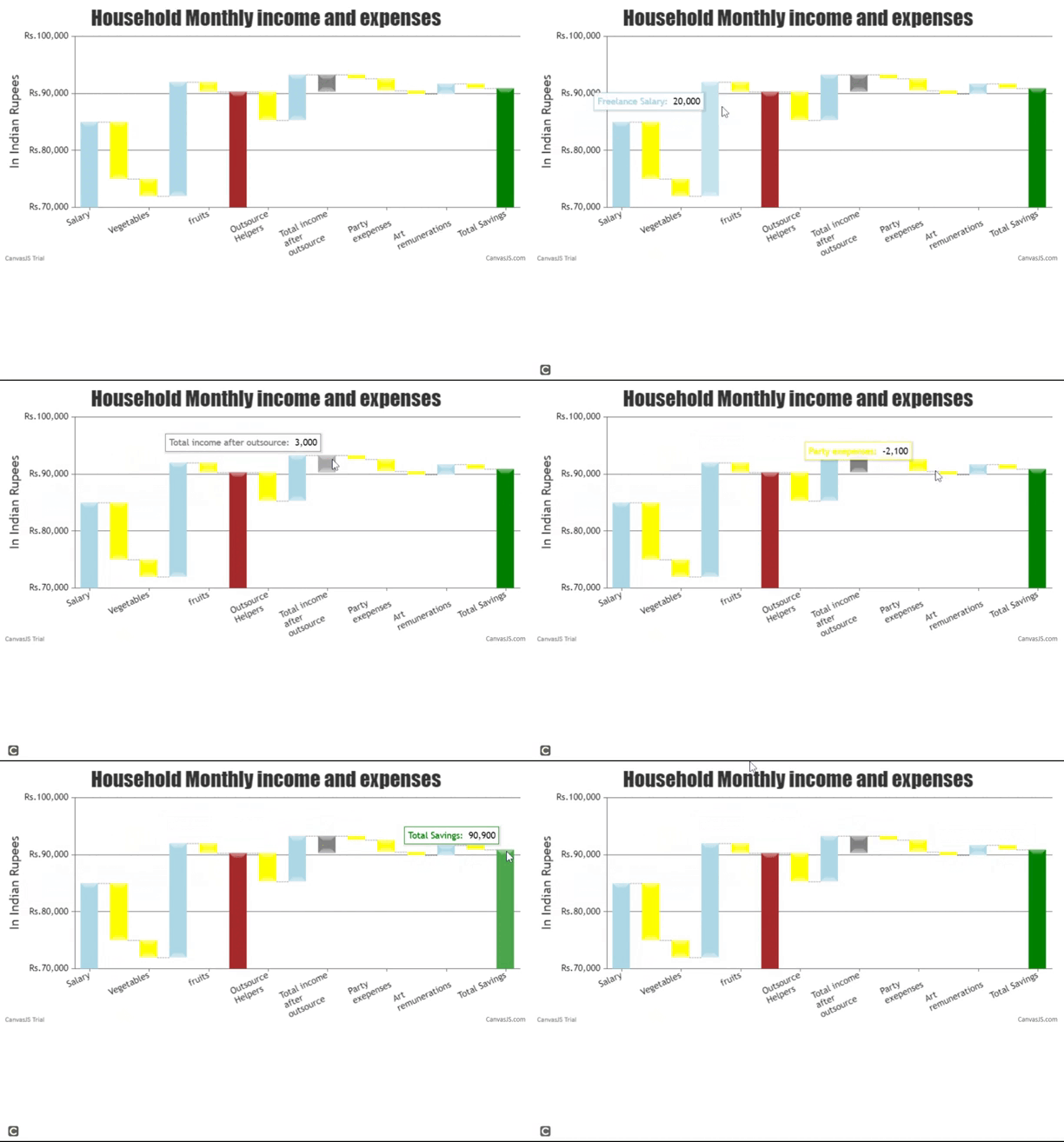
示例 2: 下面的代码还展示了一个类似的家庭月度支出示例,以及许多其他自定义设置。
- HTML
<!DOCTYPE HTML>
<html>
<head>
    <meta charset="UTF-8">

    <script src="https://canvasjs.com/assets/script/canvasjs.min.js">
    </script>
</head>
<body>
    <div id="chartID" style="height:400px; max-width:950px;
            margin:0px auto;">
    </div>
    <script>
        window.onload = function () {
            var chart = new CanvasJS.Chart("chartID", {
                title: {
                    text: "Household Monthly income and expenses"
                },

                axisY: {
                    prefix: "Rs.",
                    title: "In Indian Rupees"
                },
                data: [
                    {
                        indexLabelPlacement: "outside",
                        indexLabelOrientation: "vertical",
                        fillOpacity: 2,
                        // corner chiselled effect
                        bevelEnabled: true,
                        type: "waterfall",
                        risingColor: "lightblue",
                        fallingColor: "yellow",
                        dataPoints: [
                            { label: "Salary", y: 85000 },
                            {
                                label: "Groceries",
                                y: -10000
                            },
                            { label: "Vegetables", y: -3000 },
                            {
                                label: "Freelance Salary",
                                y: 20000
                            },
                            { label: "fruits", y: -1700 },
                            {
                                label: "Fixed expenses",
                                isIntermediateSum: true,
                                color: "brown"
                            },
                            {
                                label: "Outsource Helpers",
                                y: -5000
                            },
                            {
                                label: "Weekend Overtime",
                                y: 8000
                            },
                            {
                                label: "Total income after outsource",
                                isIntermediateSum: true,
                                color: "gray"
                            },
                            { label: "Maintenance", y: -700 },
                            {
                                label: "Party exepenses",
                                y: -2100
                            },
                            {
                                label: "Expense in May",
                                y: -600
                            },
                            {
                                label: "Art remunerations",
                                y: 1800
                            },
                            {
                                label: "Entertainment expenses",
                                y: -800
                            },
                            // automatically calculates
                            // the sum of the dataPoints
                            {
                                label: "Total Savings",
                                isCumulativeSum: true,
                                color: "green"
                            }
                        ]// end dataPoints
                    }
                ]// end data
            }); //end CanvasJS.Chart
            chart.render();
        }// end window onload
    </script>
</body>
</html>
输出:
结论: 使用瀑布图可视化地展示从某个初始值通过一系列基于时间的中间加减操作变为最终值的过程。它们主要用于监控在金融行业中进行一系列存款、银行转账、提现等活动后的账户余额。