 极客教程
极客教程如何使用CanvasJS实现面积图
在本文中,我们将学习使用Canvas JS插件来实现面积图。
面积图是一种快速简单地可视化数据的方式,可以显示随时间变化的平均值。面积图与折线图不同。面积图主要用于总结量化数据,而线条和面积图之间的区域填充有阴影或颜色。
面积图通过在线条和基准线之间添加阴影来与折线图不同。
面积图的用途:
- 它表示数据或值随着时间的变化。
- 它可以有效快速地可视化量化变化。
- 它可以通过使用步进面积图来显示不规则变化,如税率或利率的可视化。
- 它还可以通过使用样条面积图来显示平滑或逐渐变化。
语法:
new CanvasJS.Chart($("#ID"), {
  data: [{
      type: "area",
      dataPoints: [
        {...},
    ]
  }]
});
方法:
- 在HTML设计中,使用
div标签显示区域图表。 -
在代码的script部分,通过设置库的data和其他选项属性来实例化CanvasJS对象。
- 使用Canvas JS插件的render()方法渲染图表。
- 根据需要为图表的样式设置其他属性或属性。
- 根据可用的数据实现代码来制作图表。
CDN链接:
<script src="https://canvasjs.com/assets/script/canvasjs.min.js"></script>
示例 1: 以下代码展示了使用Canvas JS插件显示随时间变化的手机销售情况的简单面积图。(给定的一些年份)
HTML
<!DOCTYPE HTML>
<html>
<head>
    <meta charset="UTF-8">

    <script src=
"https://canvasjs.com/assets/script/canvasjs.min.js">
    </script>
</head>

<body>
    <div id="chartID"
         style="height:400px; max-width:950px;
            margin:0px auto;">
    </div>
    <script>
        window.onload = function () {
            // Instantiate the CanvasJS object
            var chart = new CanvasJS.Chart("chartID", {
                animationEnabled: true,
                title: {
                    text: "Number of mobile phones Sold"
                },
              // Setting the minimum and maximum date for the x axis
                axisX: {
                    minimum: new Date(2014, 01, 25),
                    maximum: new Date(2017, 09, 15),
                    valueFormatString: "DD MMM YY"
                },
                axisY: {
                    title: "Mobile phone Sales number"
                },
              // Actual data for rendering in the chart with labels
                data: [{
                    type: "area",
                    dataPoints: [
                        { x: new Date(2014, 05, 01),y: 73000,
                          label:"Samsung"},
                        { x: new Date(2015, 03, 11),y: 61100,
                          label:"Nokia"},
                        { x: new Date(2015, 02, 15),y: 47000,
                          label: "Oneplus" },
                        { x: new Date(2015, 03, 30),y: 59790,
                          label: "Oneplus" },
                        { x: new Date(2016, 03, 19),y: 74888,
                          label: "Samsung" },
                        { x: new Date(2016, 05, 22),y: 51111,
                          label: "Infinix" },
                        { x: new Date(2016, 04, 17),y: 58000,
                          label: "Nokia" },
                        { x: new Date(2016, 02, 25),y: 56000,
                          label: "Samsung" },
                        { x: new Date(2017, 09, 01),y: 78300,
                          label: "Nokia"}
                    ]
                }]
            });
          // Render the chart in the above HTML div element
         chart.render();
        }
    </script>
</body>
</html>
输出:
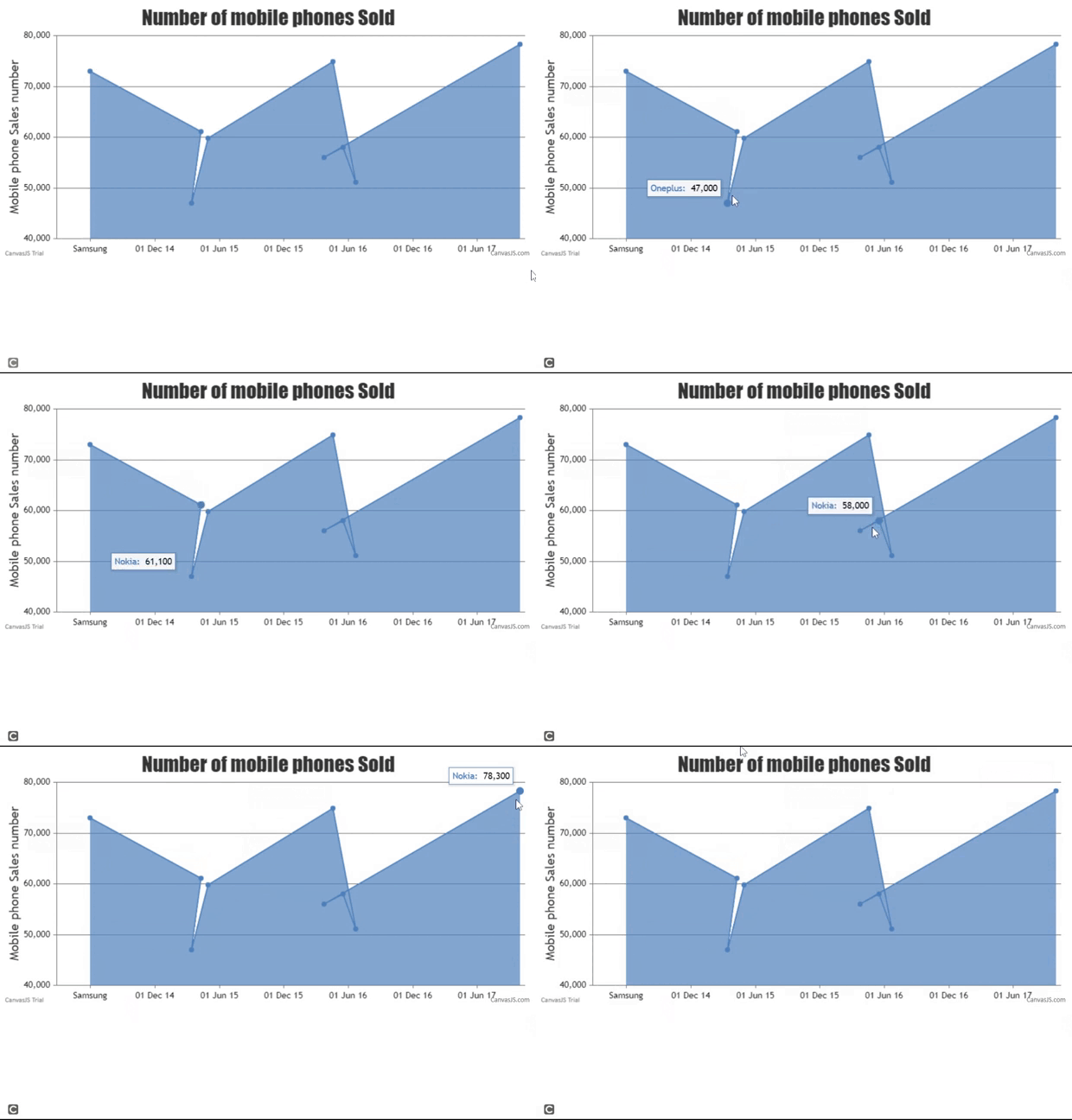
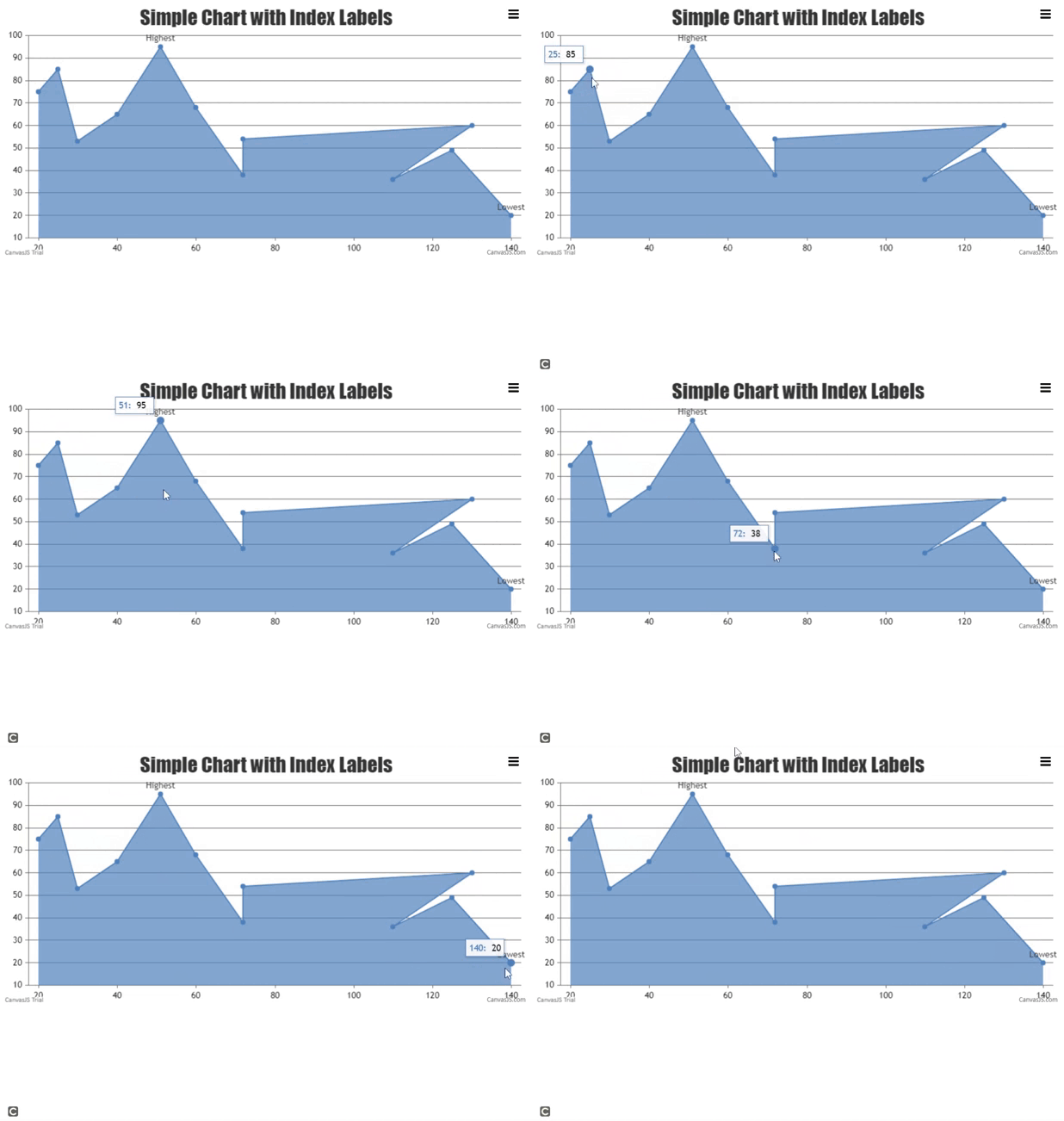
示例2: 下面的代码展示了使用Canvas JS插件绘制简单区域图,显示垂直和水平索引数据点以及最高和最低值。
HTML
<!DOCTYPE HTML>
<html>
<head>
    <meta charset="UTF-8">

    <script src=
"https://canvasjs.com/assets/script/canvasjs.min.js">
    </script>
</head>

<body>
    <div id="chartID"
         style="height:400px; max-width:950px;
            margin:0px auto;">
    </div>
    <script>
        window.onload = function () {
           // Instantiate the Canvas JS object
            var chart = new CanvasJS.Chart("chartID", {
                animationEnabled: true,
                exportEnabled: true,

                title:{
                    text: "Simple Chart with Index Labels"
                },
                data: [{
                    type: "area",
                    // x and y datapoints for rendering in the chart
                    // with highest and lowest data using indexLabel
                    dataPoints: [
                        { x: 20, y: 75 },
                        { x: 25, y: 85 },
                        { x: 30, y: 53 },
                        { x: 40, y: 65 },
                        { x: 51, y: 95,
                           indexLabel: "Highest" },
                        { x: 60, y: 68 },
                        { x: 72, y: 38 },
                        { x: 72, y: 54 },
                        { x: 130, y: 60 },
                        { x: 110, y: 36 },
                        { x: 125, y: 49 },
                        { x: 140, y: 20,
                          indexLabel: "Lowest" }
                    ]
                }]
            });
          //Render chart in the above HTML div element
           chart.render();
        }
    </script>
</body>
</html>
输出:
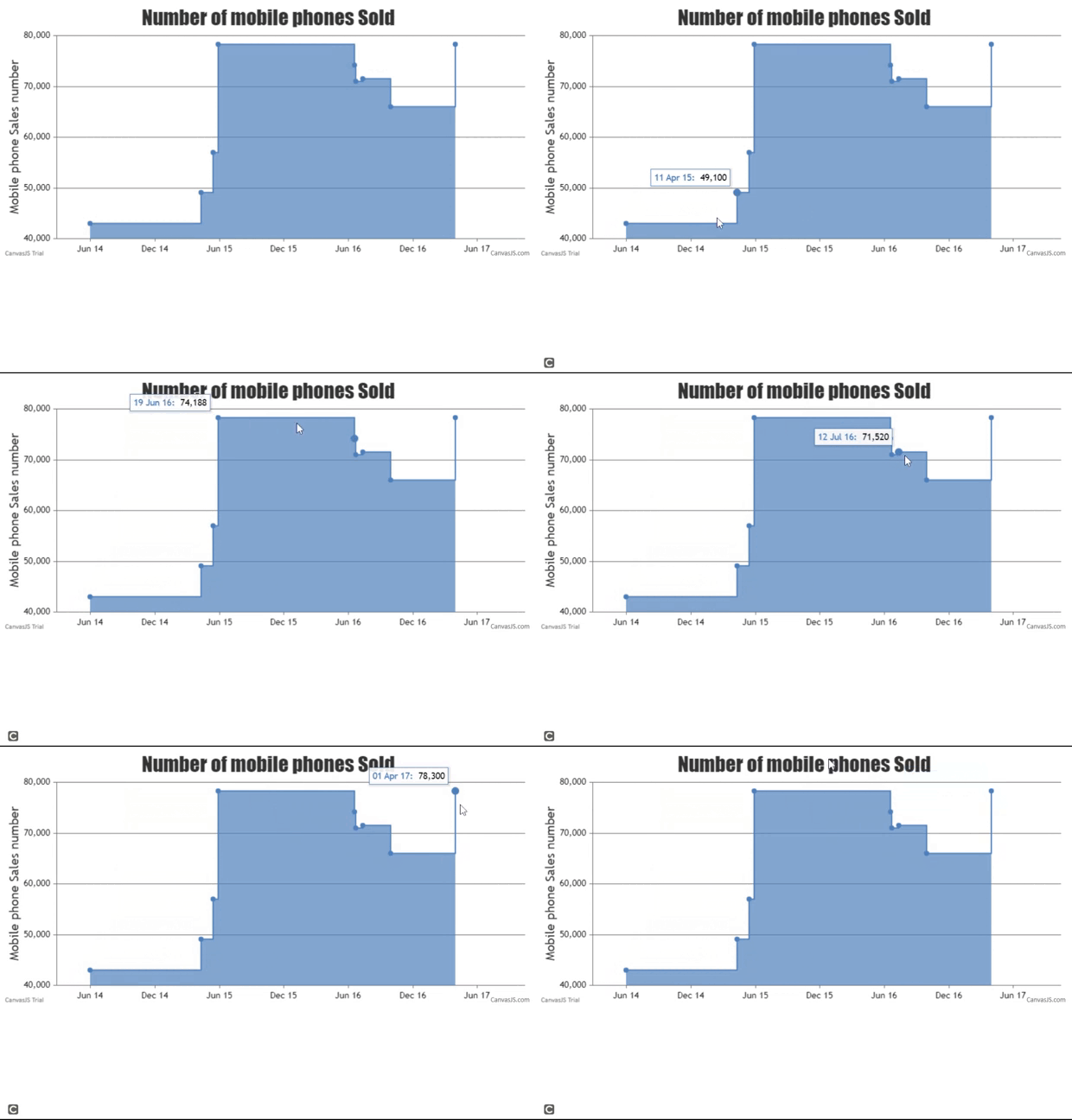
示例3: 以下代码演示了手机销售的阶梯面积图。阶梯面积图用于显示手机销售的逐渐增加。请参考代码和输出。
HTML
<!DOCTYPE HTML>
<html>
<head>
    <meta charset="UTF-8">

    <script src=
"https://canvasjs.com/assets/script/canvasjs.min.js">
    </script>
</head>

<body>
    <div id="chartID"
         style="height:400px; max-width:950px;
            margin:0px auto;">
    </div>
    <script>
        window.onload = function () {
            // Instantiate the canvas JS object
            var chart = new CanvasJS.Chart("chartID", {
                animationEnabled: true,
                title: {
                    text: "Number of mobile phones Sold"
                },
              // Setting the minimum and maximum dates
              // for x axis along with the format
                axisX: {
                    minimum: new Date(2014, 01, 25),
                    maximum: new Date(2017, 09, 15),
                    valueFormatString: "MMM YY"
                },
                axisY: {
                    title: "Mobile phone Sales number"
                },
              // Actual data to render in the chart
                data: [{
                    type: "stepArea",
                    dataPoints: [
                        { x: new Date(2014, 05, 01),
                          y: 43000},
                        { x: new Date(2015, 03, 11),
                          y: 49100},
                        { x: new Date(2015, 04, 15),
                          y: 57000},
                        { x: new Date(2015, 04, 30),
                          y: 78290},
                        { x: new Date(2016, 05, 19),
                          y: 74188},
                        { x: new Date(2016, 05, 22),
                          y: 71000},
                        { x: new Date(2016, 06, 12),
                          y: 71520},
                        { x: new Date(2016, 08, 29),
                          y: 66000},
                        { x: new Date(2017, 03, 01),
                          y: 78300}
                    ]
                }]
            });
          // Render chart object in the HTML div element
        chart.render();
        }
    </script>
</body>
</html>
输出:
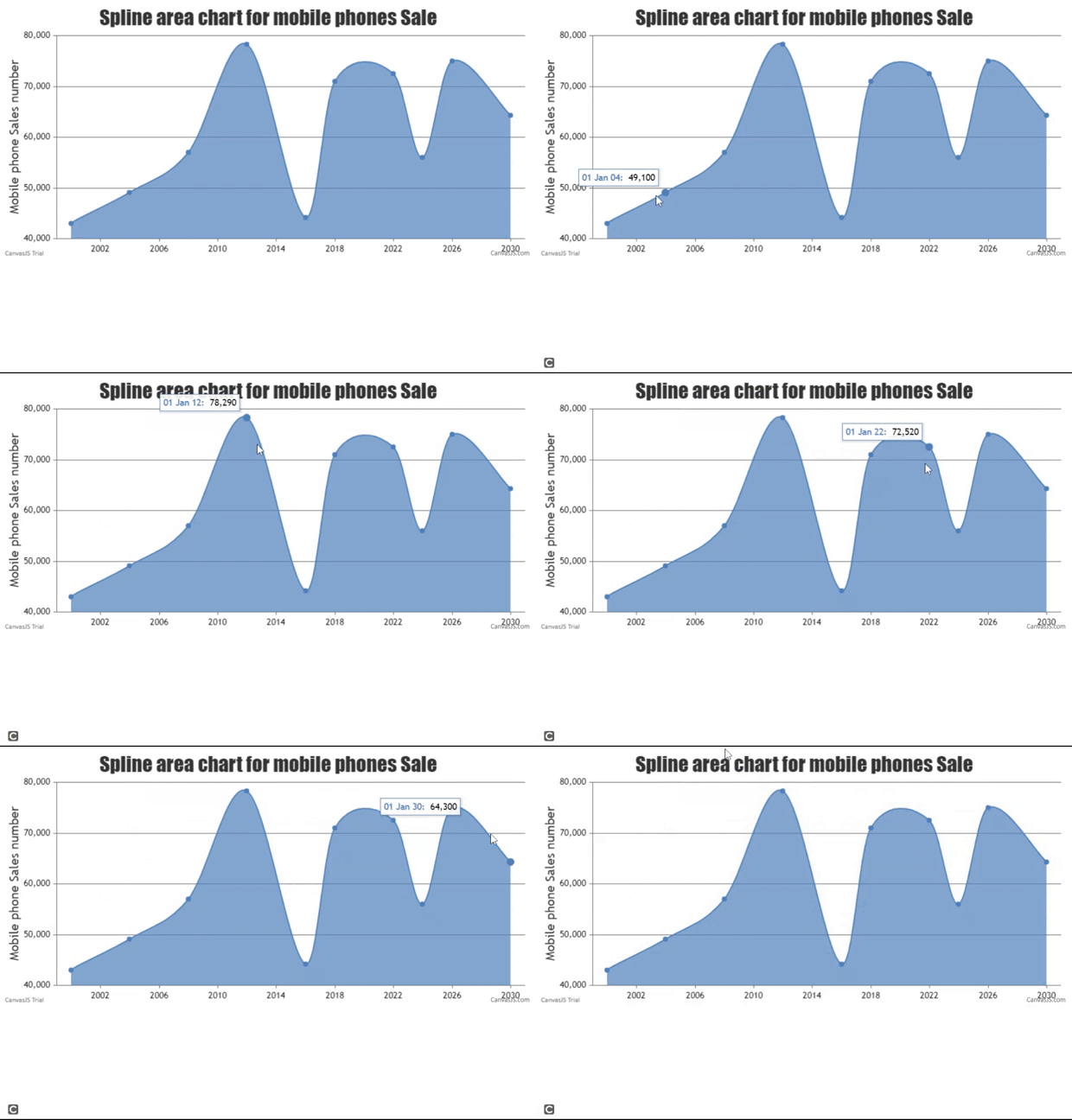
示例 4: 以下代码使用样条区域图显示数据点的平滑渐变变化。
HTML
<!DOCTYPE HTML>
<html>
<head>
    <meta charset="UTF-8">

    <script src=
"https://canvasjs.com/assets/script/canvasjs.min.js">
    </script>
</head>

<body>
    <div id="chartID"
         style="height:400px; max-width:950px;
            margin:0px auto;">
    </div>
    <script>
        window.onload = function () {
           // Instantiate the canvas JS chart object
            var chart = new CanvasJS.Chart("chartID", {
                animationEnabled: true,
                title: {
                    text: "Spline area chart for mobile phones Sale"
                },

                axisY: {
                    title: "Mobile phone Sales number"
                },
              // Actual data used to render chart
                data: [{
                    type: "splineArea",
                    dataPoints: [
                        { x: new Date(2000, 0),
                          y: 43000},
                        { x: new Date(2004, 0),
                          y: 49100},
                        { x: new Date(2008, 0),
                          y: 57000},
                        { x: new Date(2012, 0),
                          y: 78290},
                        { x: new Date(2016, 0),
                          y: 44188},
                        { x: new Date(2018, 0),
                          y: 71000},
                        { x: new Date(2022, 0),
                          y: 72520},
                        { x: new Date(2024, 0),
                          y: 56000},
                        { x: new Date(2026, 0),
                          y: 75000},
                        { x: new Date(2030, 0),
                          y: 64300}
                    ]
                }]
            });
          // Render chart object in the HTML div element
        chart.render();
        }
    </script>
</body>
</html>
输出:
结论: 区域图主要用于显示代表定量数据的数据趋势变化。它代表了一个时间段内的一些数据统计,便于比较,有助于进一步分析。它还有助于比较两个或多个数量。它们大多用于传达物品、人物或产品的整体进展趋势。