 极客教程
极客教程如何使用HTML CSS和JavaScript制作曲线状活动选项卡导航菜单
在本文中,我们将学习使用HTML、CSS和JavaScript制作导航菜单中使用的曲线状活动选项卡。曲线状外部活动选项卡设计是导航菜单中最美丽和好看的设计之一。通过CSS的border-radius属性,制作内部曲线非常容易。但是在制作外部曲线时变得复杂。因此,我们将学习如何使用以下方法使用HTML、CSS和JavaScript制作“曲线状活动选项卡导航菜单”:
- 方法1: 样式化两个伪元素。
- 方法2: 使用上面圆形的box-shadow。
外部曲线: 外部曲线是我们将活动元素连接到文档中的任何其他元素的圆角外向拐角。让我们看一个示例:
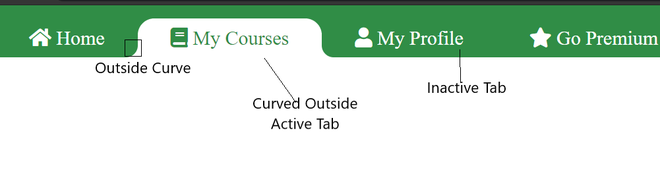
我们将使用以下步骤来创建一个“导航菜单中的曲线外观的活动选项卡”:
创建一个带有活动选项卡的导航菜单:
现在,在进行“外部曲线”部分之前,我们将使用HTML和CSS创建一个简单的导航菜单,并在以下步骤中将默认的活动项放置在导航菜单中:
- 创建一个类名为navigation的div元素。
- 在div内创建一个无序列表。
- 将您希望作为无序列表项的图标和链接添加到其中。
- 选择我们默认的活动项,并给该项添加一个类名为active的类。
- 添加自定义的CSS、背景和字体,使我们的导航菜单看起来好看。
添加JavaScript – 点击时使活动选项卡可移动:
我们已经成功创建了一个具有活动标签的侧边导航栏。现在我们的任务是使被点击的链接变为活动状态。通过JavaScript和jQuery的帮助,我们将在以下步骤中完成它:
- 将jQuery库添加到我们的HTML文档中。
- 为导航菜单的所有列表项添加点击事件。
- 阻止默认行为以防止恢复到先前的状态。
- 在该函数内,移除现有活动列表项上的‘active’类。
- 将‘active’类添加到被点击的列表项上。
方法1:样式化两个伪元素
-
在列表元素内的‘’标签的顶部添加两个额外的标签。这将充当伪元素。
- 将第一个标签添加一个类名为‘left-curve’,第二个标签添加一个类名为‘bottom-curve’。
- 使用具有类名‘left-curve’的标签创建一个在左侧的长方形。
- 使用 css : : before 选择器为该类的元素添加border-radius。
- 将左曲线的display设置为‘none’。
- 当链接处于活动状态时,将display设置为‘block’。
- 对‘right-curve’(第二个标签)进行同样的处理。
示例: 在此示例中,我们将使用上述解释的方法。
HTML
<!DOCTYPE html>
<html lang="en">
<head>
    <title>Curved Outside Active Tab | Geeksforgeeks</title>

    <!--JQuery Library-->
    <script src=
"https://ajax.googleapis.com/ajax/libs/jquery/3.5.1/jquery.min.js">
    </script>

    <!--Font Awesome for the icons-->
    <link rel="stylesheet" href=
"https://cdnjs.cloudflare.com/ajax/libs/font-awesome/5.15.4/css/all.min.css" />

    <!--Style for making the navigation menu-->
    <style>
        .navbar {
            position: fixed;
            left: 0px;
            top: 0px;
            height: auto;
            width: 100%;
            background: #308d46;
        }

        .navbar ul {
            display: flex;
            list-style-type: none;
            margin-block-start: 1em;
            margin-block-end: 1em;
            margin-inline-start: 0px;
            margin-inline-end: 0px;
            padding-inline-start: 0px;
            margin-bottom: 0px;
            padding-left: 40px;
        }

        .navbar ul li {
            display: inline;
            list-style: none;
            padding-left: 30px;
            padding-right: 30px;
            padding-top: 10px;
            padding-bottom: 10px;
            font-size: 1rem;
            border-radius: 20px 20px 0px 0px;
            position: relative;
        }

        .navbar ul li.active {
            background: #fff;
        }

        .navbar ul li a {
            text-decoration: none;
            color: #fff;
        }

        .navbar ul li.active a {
            color: #308d46;
        }
    </style>

    <!-- The Pseudo elements : Style
      for the outside curve-->
    <style>
        .navbar ul li b.left-curve {
            position: absolute;
            bottom: 0px;
            left: -20px;
            height: 100%;
            width: 20px;
            background: #fff;
            display: none;
        }

        .navbar ul li b.left-curve::before {
            content: "";
            top: 0;
            left: 0;
            position: absolute;
            width: 100%;
            height: 100%;
            border-bottom-right-radius: 20px;
            background: #308d46;
        }

        .navbar ul li b.right-curve {
            position: absolute;
            right: -20px;
            top: 0px;
            height: 100%;
            width: 20px;
            background: #fff;
            display: none;
        }

        .navbar ul li b.right-curve::before {
            content: "";
            right: 0;
            position: absolute;
            width: 100%;
            top: 0;
            height: 100%;
            border-bottom-left-radius: 20px;
            background: #308d46;
        }

        .navbar ul li.active b.left-curve,
        .navbar ul li.active b.right-curve {
            display: block;
        }
    </style>

    <script>
        (function () {
            ("li").click(function (e) {
                e.preventDefault();
                ("li").removeClass("active");
                (this).addClass("active");
            });
        });
    </script>
</head>

<body>
    <div class="navbar">
        <ul>
            <li class="list-item">
                <b class="left-curve"></b>
                <b class="right-curve"></b>
                <a>
                    <i class="fa fa-home"></i>
                    Home
                </a>
            </li>
            <li class="list-item">
                <b class="left-curve"></b>
                <b class="right-curve"></b>
                <a>
                    <i class="fa fa-book"></i>
                    My Courses
                </a>
            </li>
            <li class="list-item">
                <b class="left-curve"></b>
                <b class="right-curve"></b>
                <a>
                    <i class="fa fa-user"></i>
                    My Profile
                </a>
            </li>
            <li class="list-item active">
                <b class="left-curve"></b>
                <b class="right-curve"></b>
                <a>
                    <i class="fa fa-star"></i>
                    Go Premium
                </a>
            </li>
        </ul>
    </div>
</body>
</html>
输出:
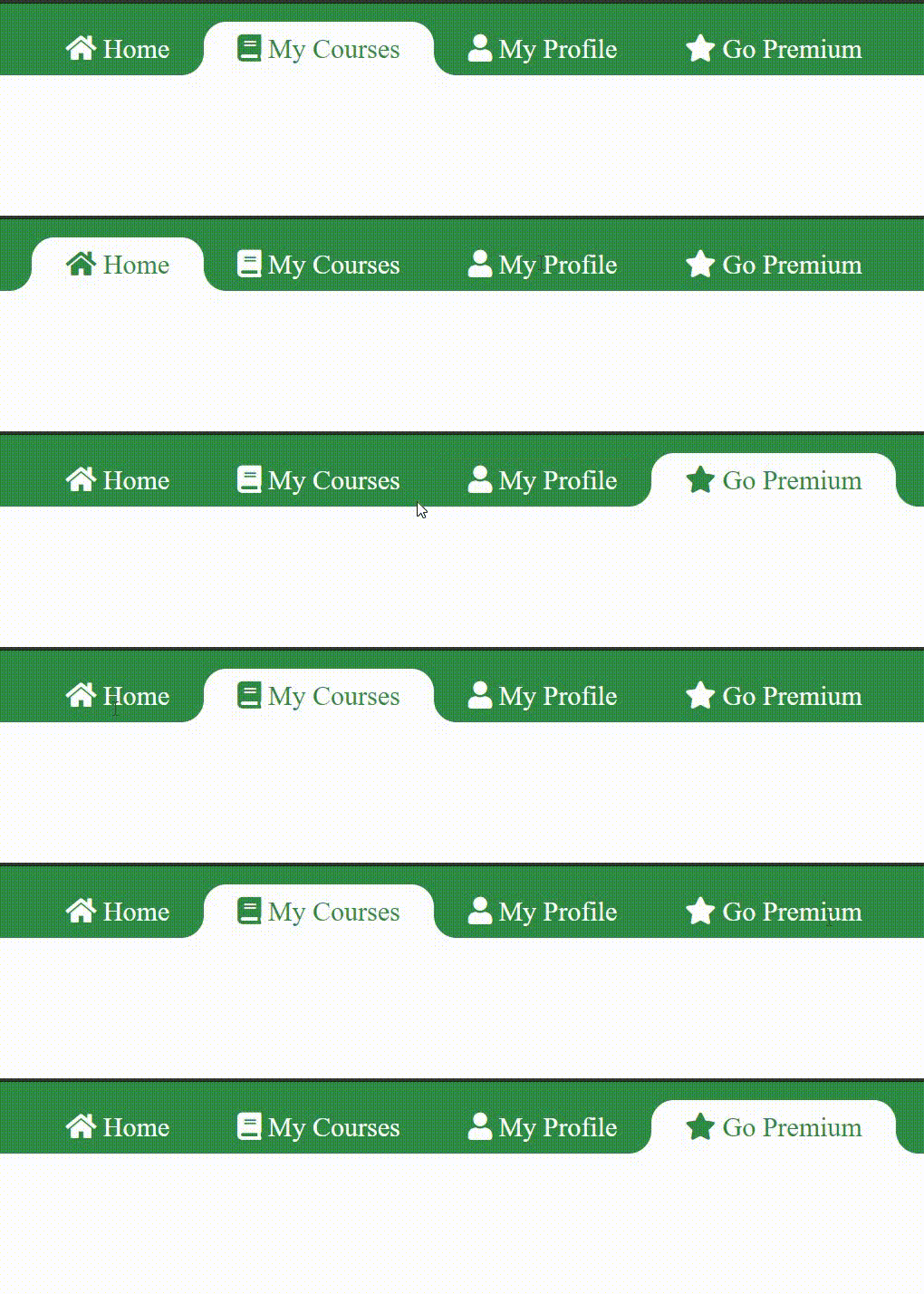
第二种方法:使用上面圆形英雄影响的阴影
- 使用 ::before 和 ::after 选择器在活动链接的顶部和底部创建一个圆形。
- 以相同的参数创建一个圆形的阴影。

- 将圆形的颜色与导航栏的背景颜色相同,并将阴影框的颜色与外层div的颜色相同。现在活动链接呈弧形向外突出。

示例: 在这里,我们将使用上面解释的方法。
HTML
<!DOCTYPE html>
<html lang="en">
<head>
    <title>Curved Outside Active Tab | Geeksforgeeks</title>

    <!--Font Awesome for the icons-->
    <link rel="stylesheet" href=
"https://cdnjs.cloudflare.com/ajax/libs/font-awesome/5.15.4/css/all.min.css" />

    <!--JQuery Library-->
    <script src=
"https://ajax.googleapis.com/ajax/libs/jquery/3.5.1/jquery.min.js">
    </script>

    <!--Style for making the navigation menu-->
    <style>
        .navbar {
            position: fixed;
            left: 0px;
            top: 0px;
            height: auto;
            width: 100%;
            background: #308d46;
        }

        .navbar ul {
            display: flex;
            list-style-type: none;
            margin-block-start: 1em;
            margin-block-end: 1em;
            margin-inline-start: 0px;
            margin-inline-end: 0px;
            padding-inline-start: 0px;
            margin-bottom: 0px;
            padding-left: 40px;
        }

        .navbar ul li {
            display: inline;
            list-style: none;
            padding-left: 30px;
            padding-right: 30px;
            padding-top: 10px;
            padding-bottom: 10px;
            font-size: 1rem;
            border-radius: 20px 20px 0px 0px;
            position: relative;
        }

        .navbar ul li.active {
            background: #fff;
        }

        .navbar ul li a {
            text-decoration: none;
            color: #fff;
        }

        .navbar ul li.active a {
            color: #308d46;
        }
    </style>

    <!-- The Circles with box-shadow-->
    <style>
        li.active a::before {
            content: "";
            left: -30px;
            bottom: 0;
            height: 30px;
            width: 30px;
            position: absolute;
            background: #308d46;
            border-radius: 50%;
            box-shadow: 15px 15px 0 #fff;
        }

        li.active a::after {
            content: "";
            right: -30px;
            bottom: 0;
            height: 30px;
            width: 30px;
            position: absolute;
            background: #308d46;
            border-radius: 50%;
            box-shadow: -15px 15px 0 #fff;
        }
    </style>

    <script>
        (function () {
            ("li").click(function (e) {
                e.preventDefault();
                ("li").removeClass("active");
                (this).addClass("active");
            });
        });
    </script>
</head>

<body>
    <div class="navbar">
        <ul>
            <li class="list-item">
                <a>
                    <i class="fa fa-home"></i>
                    Home
                </a>
            </li>
            <li class="list-item">
                <a>
                    <i class="fa fa-book"></i>
                    My Courses
                </a>
            </li>
            <li class="list-item">
                <a>
                    <i class="fa fa-user"></i>
                    My Profile
                </a>
            </li>
            <li class="list-item active">
                <a>
                    <i class="fa fa-star"></i>
                    Go Premium
                </a>
            </li>
        </ul>
    </div>
</body>
</html>
输出:
