 极客教程
极客教程JavaScript 创建简单的图片编辑器
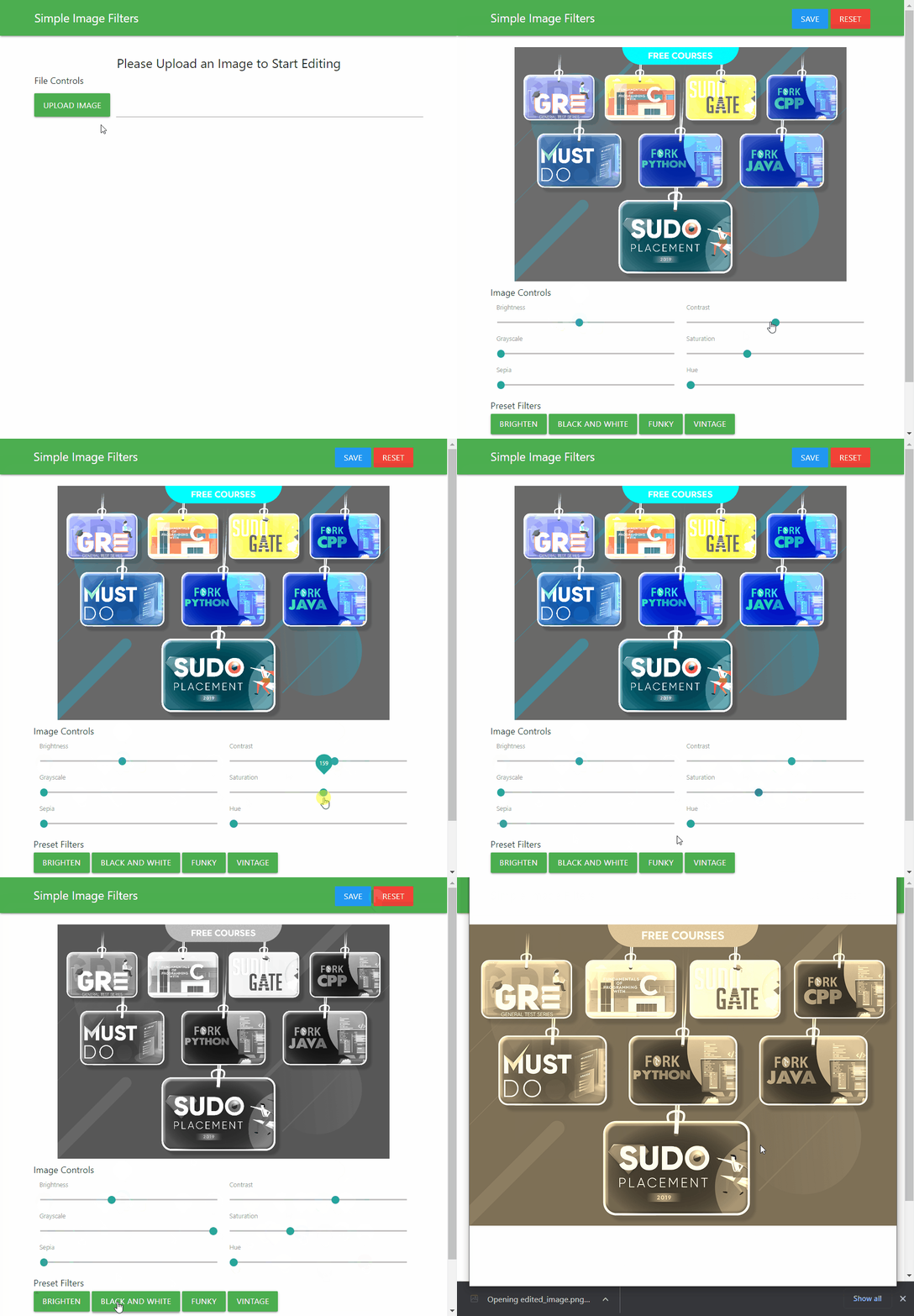
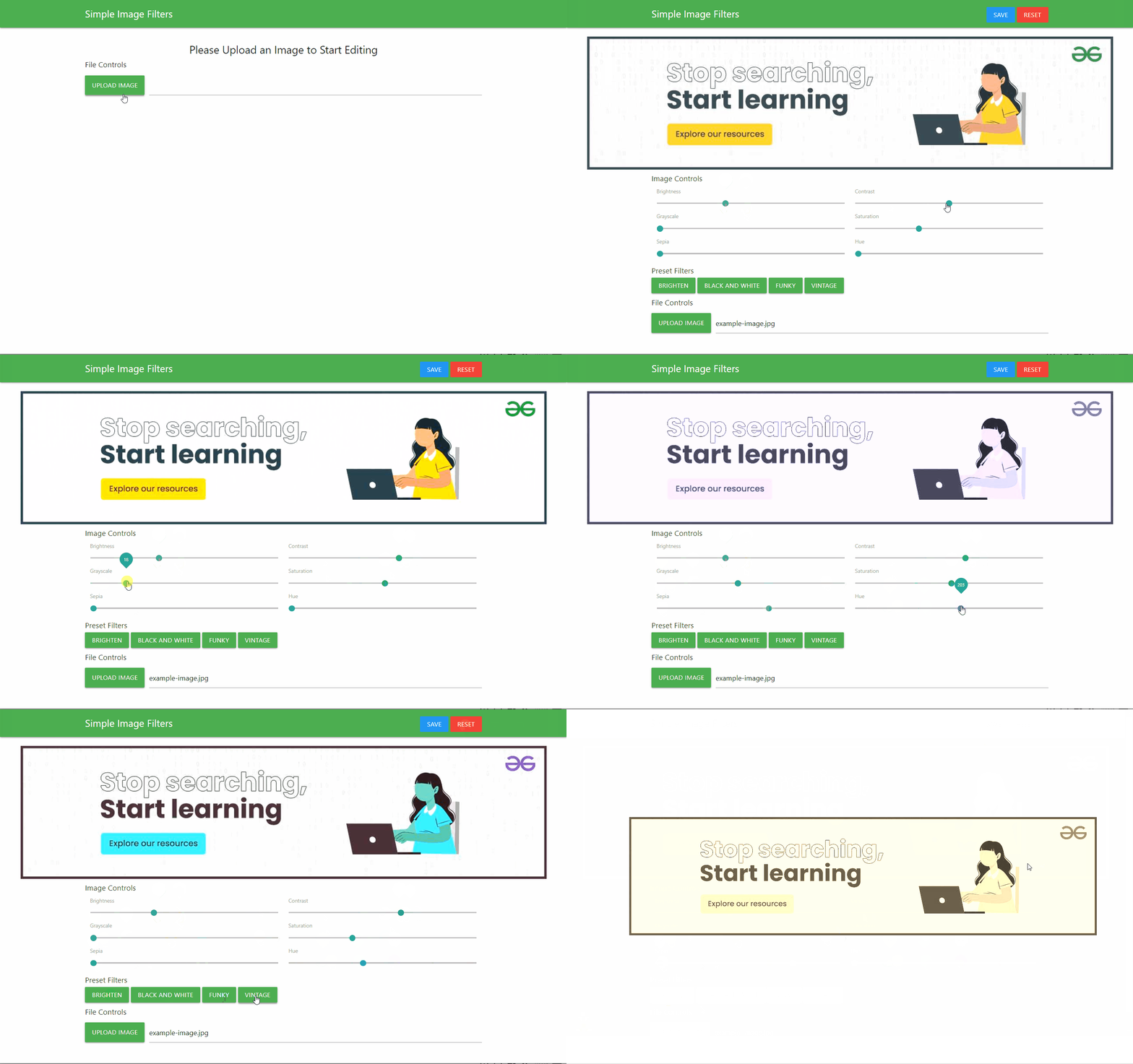
在本文中,我们将创建一个 简单的图片编辑器 ,可以用来调整图像的亮度、对比度、色调、饱和度、灰度和复古效果。图像编辑器可以让我们在拍摄照片后快速编辑图片,增强图片效果或完全改变其外观。通过各种数值的组合,我们可以给图片赋予完全不同的外观。我们将在浏览器中使用 仅 HTML、CSS、JavaScript和画布API来完成所有这些操作,使应用程序轻量且快速。
<!DOCTYPE html>
<html lang="en">

<head>
    <title>Simple Image Editor</title>
    <link rel="stylesheet" href=
"https://fonts.googleapis.com/icon?family=Material+Icons">

    <!-- Compiled and minified CSS -->
    <link rel="stylesheet" href=
"https://cdnjs.cloudflare.com/ajax/libs/materialize/1.0.0/css/materialize.min.css">

    <!-- Import custom stylesheet -->
    <link rel="stylesheet" href="style.css">

    <!-- Compiled and minified JavaScript -->
    <script defer src=
"https://cdnjs.cloudflare.com/ajax/libs/materialize/1.0.0/js/materialize.min.js">
    </script>
</head>

<body>
    <nav class="green">
        <div class="nav-wrapper container">
            <span class="nav-header">
              Simple Image Filters
            </span>
            <ul class="right image-save">
                <button class="btn btn-flat blue white-text"
                        onclick="saveImage()">
                  Save
                </button>
                <button class="btn btn-flat red white-text"
                        onclick="resetImage()">
                  Reset
                </button>
            </ul>
        </div>
    </nav>

    <!-- Hidden image that will be used for
    holding the source image -->
    <img id="sourceImage" crossorigin="anonymous">

    <div class="image-preview">

        <!-- Canvas that will hold the
        image to be edited -->
        <canvas id="canvas" height="0"></canvas>
    </div>
    <div class="container app">

        <!-- Text to be shown at the beginning
        of the application -->
        <div class="help-text center-align">
            <h5>Please Upload an Image to Start Editing</h5>
        </div>

        <!-- All the image controls that will be
        used for modifying the image -->
        <div class="image-controls">
            <h6>Image Controls</h6>
            <div class="row">
                <div class="col s6">
                    <span class="range-field">
                        <label for="brightnessSlider">
                          Brightness
                        </label>
                        <input id="brightnessSlider"
                               type="range" value="100"
                               min="0" max="300"
                               onchange="applyFilter()">
                    </span>
                </div>
                <div class="col s6">
                    <span class="range-field">
                        <label for="contrastSlider">
                          Contrast
                        </label>
                        <input id="contrastSlider"
                               type="range" value="100"
                               min="0" max="200"
                               onchange="applyFilter()">
                    </span>
                </div>
            </div>

            <div class="row">
                <div class="col s6">
                    <span class="range-field">
                        <label for="grayscaleSlider">
                          Grayscale
                        </label>
                        <input id="grayscaleSlider"
                               type="range" value="0"
                               min="0" max="100"
                               onchange="applyFilter()">
                    </span>
                </div>
                <div class="col s6">
                    <span class="range-field">
                        <label for="saturationSlider">
                          Saturation
                        </label>
                        <input id="saturationSlider"
                               type="range" value="100"
                               min="0" max="300"
                               onchange="applyFilter()">
                    </span>
                </div>
            </div>

            <div class="row">
                <div class="col s6">
                    <span class="range-field">
                        <label for="sepiaSlider">
                          Sepia
                        </label>
                        <input id="sepiaSlider"
                               type="range" value="0"
                               min="0" max="200"
                               onchange="applyFilter()">
                    </span>
                </div>
                <div class="col s6">
                    <span class="range-field">
                        <label for="hueRotateSlider">
                          Hue
                        </label>
                        <input id="hueRotateSlider"
                               type="range" value="0"
                               min="0" max="360"
                               onchange="applyFilter()">
                    </span>
                </div>
            </div>
        </div>

        <!-- Buttons that will be used to change
        the values to preset ones -->
        <div class="preset-filters">
            <h6>Preset Filters</h6>
            <button class="btn green"
                    onclick="brightenFilter()">
              Brighten
            </button>
            <button class="btn green"
                    onclick="bwFilter()">
              Black and White
            </button>
            <button class="btn green"
                    onclick="funkyFilter()">
              Funky
            </button>
            <button class="btn green"
                    onclick="vintageFilter()">
              Vintage
            </button>
        </div>

        <!-- File control to upload a new file -->
        <div class="file-controls">
            <h6>File Controls</h6>

            <!-- Element that will be later used to download
            the canvas image from code -->
            <a id="link"></a>

            <!-- File Selector for uploading the image -->
            <div class="file-field input-field">
                <div class="btn green">
                    <span>Upload Image</span>
                    <input type="file" accept="image/*"
                           onchange="uploadImage(event)">
                </div>
                <div class="file-path-wrapper">
                    <input class="file-path" type="text">
                </div>
            </div>
        </div>
    </div>

      <!-- Load the script for the editor -->
    <script src="app.js"></script>
</body>

</html>
CSS样式:
根据我们的应用程序,我们将对默认的Materialize样式进行一些微小的更改。主要更改包括:
- 在未选择图像时隐藏图像滤镜滑块和按钮,并使用 display 属性显示帮助信息。
- 通过使用 flex 和 justify-content 属性来居中图像预览。
- 将画布的最大高度设置为固定值,并使用 object-fit 属性确保它适合给定区域。这将有助于在所有屏幕尺寸上使用应用程序,而不会占用过多的空间。
CSS
.nav-header {
    font-size: 1.5rem;
}

.row {
    margin-bottom: 0;
}

#sourceImage,
.image-controls,
.image-save,
.preset-filters {
    display: none;
}

.image-preview {
    display: flex;
    justify-content: center;
    margin-top: 20px;
}

#canvas {
    max-height: 420px;
    object-fit: contain;
}
JavaScript部分:
该部分包含应用程序的主要逻辑。在这里,我们将逻辑分为5个步骤,如下所述:
步骤1: 定义变量并创建对HTML元素的引用:
我们首先使用querySelector()方法选择所有需要通过JavaScript进行修改的元素。 然后为它们分配变量名,以便可以轻松访问它们。还为画图创建了对画布及其2D上下文的引用。
JavaScript
// Get the source image to be edited
let image = document.getElementById('sourceImage');

// Get the canvas for the edited image
let canvas = document.getElementById('canvas');

// Get the 2D context of the image
let context = canvas.getContext('2d');

// Get all the sliders of the image
let brightnessSlider = document.getElementById("brightnessSlider");
let contrastSlider = document.getElementById("contrastSlider");
let grayscaleSlider = document.getElementById("grayscaleSlider");
let hueRotateSlider = document.getElementById("hueRotateSlider");
let saturateSlider = document.getElementById("saturationSlider");
let sepiaSlider = document.getElementById("sepiaSlider");
步骤2: 从文件系统加载图像:
- 我们将使用不可见的
<img>元素, 在我们将其绘制到画布之前,我们在HTML中已经定义了它作为源图像。 - 在 uploadImage()函数 中,我们将首先使用 URL.createObjectURL()方法 加载图像,并将其赋值给上述源图像元素的 src 属性。可以通过文件选择器的change事件使用 event.target.files[0] 来访问图像文件。
- 然后,我们将设置画布的 height 和 width 与图像的尺寸相等。我们还将将 crossOrigin 属性设置为 anonymous 以防止污染画布问题。然后,我们将调用 applyFilter()函数 将图像绘制到画布上。该函数将在下一步中解释。
- 我们还将使图像控件可见,并隐藏先前显示的帮助文本。
Javascript
function uploadImage(event) {

    // Set the source of the image from the uploaded file
    image.src = URL.createObjectURL(event.target.files[0]);

    image.onload = function () {
        // Set the canvas the same width and height of the image
        canvas.width = this.width;
        canvas.height = this.height;
        canvas.crossOrigin = "anonymous";
        applyFilter();
    };

    // Show the image editor controls and hide the help text
    document.querySelector('.help-text').style.display = "none";
    document.querySelector('.image-save').style.display = "block";
    document.querySelector('.image-controls').style.display = "block";
    document.querySelector('.preset-filters').style.display = "block";
};
步骤3: 绘制图像并应用当前的过滤器数值。
- applyFilter() 函数: 这是处理图像绘制和应用过滤器数值的主要函数。Canvas API 提供了一个 filter 属性 ,它可以将过滤器应用到画布上。由于该属性只能被赋值一次,我们需要一次性指定所有过滤器,这样它们才会一起应用到画布上。
- 我们首先要创建一个字符串,该字符串将包含我们选择的过滤器。这些是在CSS中常见的过滤器。我们将使用 value 属性 获取滑块的当前值,并在字符串中的正确位置使用它们。
- 然后,我们将将这个字符串赋值给画布的 filter 属性 。这将把过滤器应用到画布上。
- 最后,我们将使用Context API的 drawImage() 方法 绘制图像。
JavaScript
// This function is used to update the image
// along with all the filter values
function applyFilter() {

    // Create a string that will contain all the filters
    // to be used for the image
    let filterString =
        "brightness(" + brightnessSlider.value + "%" +
        ") contrast(" + contrastSlider.value + "%" +
        ") grayscale(" + grayscaleSlider.value + "%" +
        ") saturate(" + saturateSlider.value + "%" +
        ") sepia(" + sepiaSlider.value + "%" +
        ") hue-rotate(" + hueRotateSlider.value + "deg" + ")";

    // Apply the filter to the image
    context.filter = filterString;

    // Draw the edited image to canvas
    context.drawImage(image, 0, 0);
}
步骤4: 使用预设滤镜对图像进行处理:
- 我们已经定义了一系列的预设滤镜按钮,每个按钮都可以设置滑块的特定值。这样可以应用一组唯一的数值组合,快速实现所需的效果,并根据需要进一步修改数值。
- 每个函数首先使用下一步中我们将定义的 resetImage()函数 重置图像,然后设置该预设的所需滤镜数值,最后调用 applyFilter()函数 对图像进行重绘处理。
- 用户可以在应用预设后通过修改滑块来进一步改变滤镜效果。
Javascript
// A series of functions that handle the preset filters
// Each of these will first reset the image
// and then apply a certain parameter before
// redrawing the image
function brightenFilter() {
    resetImage();
    brightnessSlider.value = 130;
    contrastSlider.value = 120;
    saturateSlider.value = 120;
    applyFilter();
}

function bwFilter() {
    resetImage();
    grayscaleSlider.value = 100;
    brightnessSlider.value = 120;
    contrastSlider.value = 120;
    applyFilter();
}

function funkyFilter() {
    resetImage();

    // Set a random hue rotation everytime
    hueRotateSlider.value =
        Math.floor(Math.random() * 360) + 1;
    contrastSlider.value = 120;
    applyFilter();
}

function vintageFilter() {
    resetImage();
    brightnessSlider.value = 120;
    saturateSlider.value = 120;
    sepiaSlider.value = 150;
    applyFilter();
}
步骤5: 重置和保存图像:
- 重置图像: 可以通过将滤镜值设置为默认值,然后调用 applyFilter() 方法来重置图像。这还将将滑块调整为其默认位置。
- 保存图像: 可以通过参考我们在HTML部分创建的临时
<a>元素来保存图像。我们将使用 download 属性来设置文件名,使用 href 属性来设置要保存的画布数据。我们将使用 toDataURL()方法 将画布转换为数据URL,然后转换为图像流,以便自动开始下载。
Javascript
// Reset all the slider values to there default values
function resetImage() {
    brightnessSlider.value = 100;
    contrastSlider.value = 100;
    grayscaleSlider.value = 0;
    hueRotateSlider.value = 0;
    saturateSlider.value = 100;
    sepiaSlider.value = 0;
    applyFilter();
}

function saveImage() {
    // Select the temporary element we have created for
    // helping to save the image
    let linkElement = document.getElementById('link');
    linkElement.setAttribute(
      'download', 'edited_image.png'
    );

    // Convert the canvas data to a image data URL
    let canvasData = canvas.toDataURL("image/png")

    // Replace it with a stream so that
    // it starts downloading
    canvasData.replace(
      "image/png", "image/octet-stream"
    )

    // Set the location href to the canvas data
    linkElement.setAttribute('href', canvasData);

    // Click on the link to start the download
    linkElement.click();
}
完成上述步骤后,图像编辑器已准备好在任何浏览器中使用。您可以根据自己的喜好添加更多预设滤镜,甚至可以使用其他可用的CSS滤镜。
输出: