 极客教程
极客教程Angular PrimeNG Form 密码模板组件
Angular PrimeNG是一个开源的前端UI库,它有许多原生的Angular UI组件,可以帮助开发人员建立一个快速和可扩展的网络解决方案。本文将讨论Angular PrimeNG表单密码模板组件。
密码组件用于从用户那里获得敏感信息的输入,如密码、信用卡/借记卡CVV等。当它处于焦点位置时,会向用户显示一个密码强度指示器。密码组件有3个模板,列在下面。
Angular PrimeNG表格密码模板:
- header。该模板用于指定密码组件面板的页眉。
- content。该模板用于指定密码组件面板的内容。
- footer。该模板用于指定密码组件面板的页脚。
语法:
<p-password
    [(ngModel)]="...">
    <ng-template pTemplate="header">
        ...
    </ng-template>
    <ng-template pTemplate="content">
        ...
    </ng-template>
    <ng-template pTemplate="footer">
        ...
    </ng-template>
</p-password>
创建Angular应用程序并安装模块:
第1步 。使用以下命令创建一个Angular应用程序。
ng new appname
第2步:创建你的项目文件夹即appname后,使用以下命令移动到它。
cd appname
第3步:最后,在你给定的目录中安装PrimeNG。
npm install primeng --save
npm install primeicons --save
项目结构。按照上述步骤,项目结构将看起来像这样。
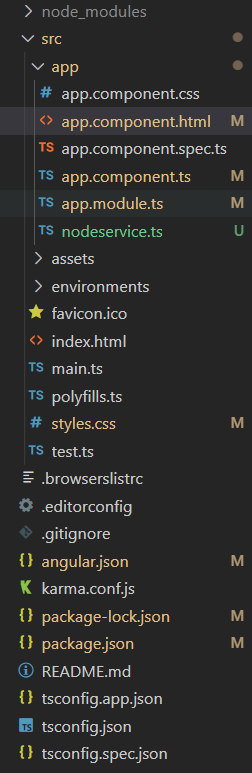
Project Structure
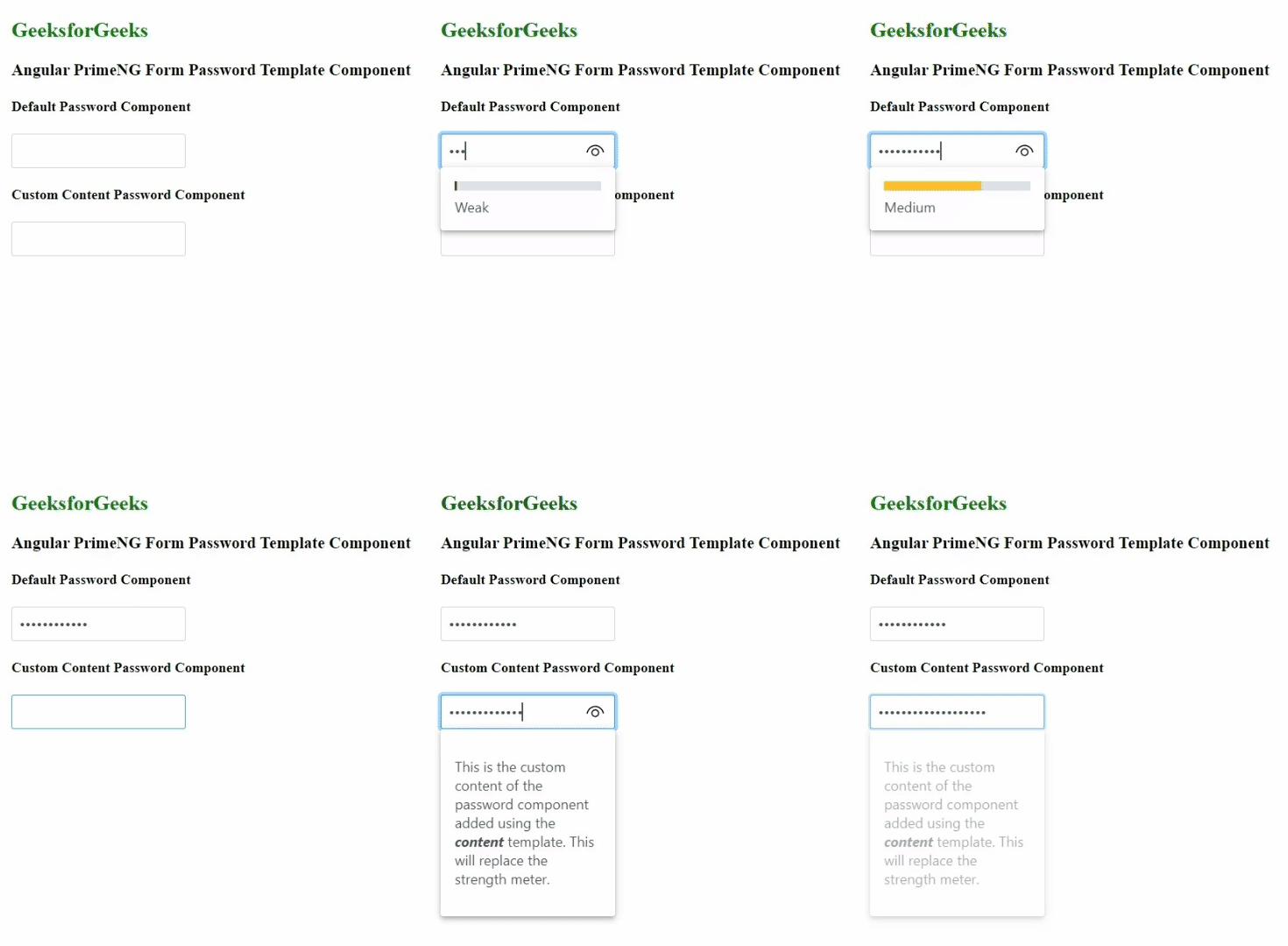
例子1:在这个例子中,我们使用密码组件的内容模板来覆盖密码的默认强度计,并为其添加自定义文本。
- app.component.html
<h2 style="color: green">GeeksforGeeks</h2>
<h3>
    Angular PrimeNG Form
    Password Template Component
</h3>

<h4>Default Password Component</h4>
<p-password [(ngModel)]="password1">
</p-password>

<h4>Custom Content Password Component</h4>
<p-password [(ngModel)]="password2">
    <ng-template pTemplate="content">
        <p>
            This is the custom
            content of the password
            component added using
            the <i><b>content</b></i>
            template. This will replace
            the strength meter.
        </p>
    </ng-template>
</p-password>
- app.component.ts
import { Component } from '@angular/core';

@Component({
    selector: 'app-root',
    templateUrl: './app.component.html',
    styleUrls: ['./app.component.css'],
})

export class AppComponent {
    password1?: string;
    password2?: string;
}
- app.module.ts
import { NgModule } from '@angular/core';
import { BrowserModule }
    from '@angular/platform-browser';
import { BrowserAnimationsModule }
    from '@angular/platform-browser/animations';
import { AppComponent } from './app.component';
import { FormsModule } from '@angular/forms';
import { PasswordModule } from 'primeng/password';

@NgModule({
    imports: [
        BrowserModule,
        BrowserAnimationsModule,
        FormsModule,
        PasswordModule
    ],
    declarations: [AppComponent],
    bootstrap: [AppComponent],
})
export class AppModule { }
输出:
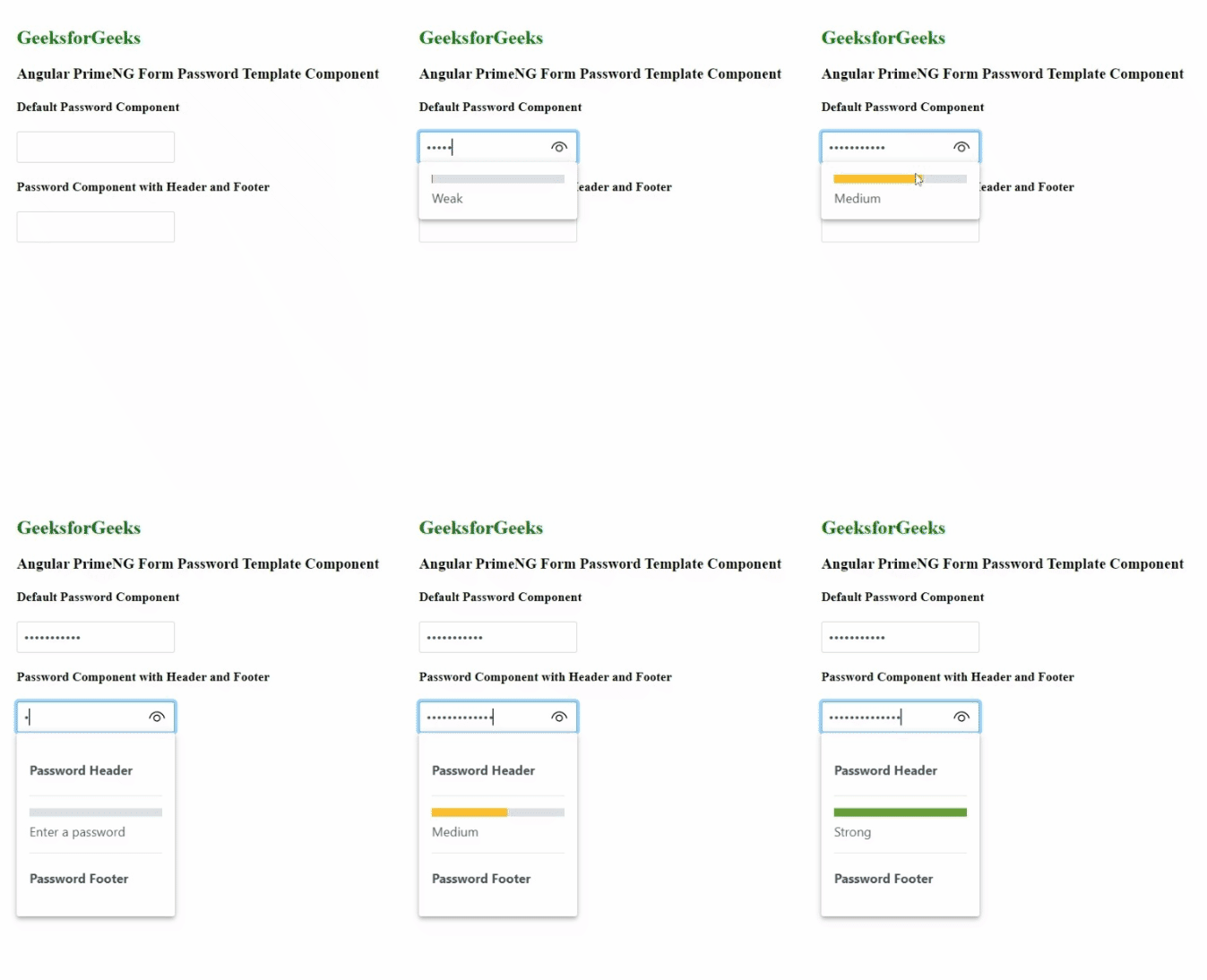
例子2:在这个例子中,我们使用了密码组件的页眉和页脚模板,将额外的内容与强度计一起添加到叠加面板上.。
- app.component.html
<h2 style="color: green">GeeksforGeeks</h2>
<h3>
    Angular PrimeNG Form
    Password Template Component
</h3>

<h4>Default Password Component</h4>
<p-password [(ngModel)]="password1">
</p-password>

<h4>
      Password Component
      with Header and Footer
</h4>
<p-password [(ngModel)]="password2">
    <ng-template pTemplate="header">
        <h4>Password Header</h4>
        <p-divider></p-divider>
    </ng-template>
    <ng-template pTemplate="footer">
        <p-divider></p-divider>
        <h4>Password Footer</h4>
    </ng-template>
</p-password>
- app.component.ts
import { Component } from '@angular/core';

@Component({
    selector: 'app-root',
    templateUrl: './app.component.html',
    styleUrls: ['./app.component.css'],
})

export class AppComponent {
    password1?: string;
    password2?: string;
}
- app.module.ts
import { NgModule } from '@angular/core';
import { BrowserModule }
    from '@angular/platform-browser';
import { BrowserAnimationsModule }
    from '@angular/platform-browser/animations';
import { AppComponent } from './app.component';
import { FormsModule } from '@angular/forms';
import { PasswordModule } from 'primeng/password';

@NgModule({
    imports: [
        BrowserModule,
        BrowserAnimationsModule,
        FormsModule,
        PasswordModule
    ],
    declarations: [AppComponent],
    bootstrap: [AppComponent],
})
export class AppModule { }
输出: