 极客教程
极客教程如何使用HTML CSS和JavaScript制作图像库
图像库用于存储和显示一系列图片。 在本文中,我们将使用HTML和CSS以及JavaScript创建一个响应式图像库。 如果你是初学者,通过参考本文,这将帮助你构建一个使用HTML, CSS和JavaScript的小型网站项目。
这是我们要创建的项目的预览图像:

方法:
- 图像库将显示所有图像的小尺寸,并且当您点击特定图像时,它将展开,您可以看到它的大尺寸。
- 为了创建这个,我们首先使用CSS的grid属性,通过创建简单的HTML结构将所有图像放置在网格布局中。
- 在设计基本的HTML结构之后,我们将使用CSS属性使图像具有响应性。
- 现在,我们将使用CSS transform 和 cursor: Zoom-in 属性,在您点击特定图像时以全尺寸查看图像。
在编码之前,您只需要在您的CSS文件中导入以下代码来获取字体:
@import url('
https://fonts.googleapis.com/css2?family=Yaldevi:wght@200;300;400;500;600;700&display=swap
');
示例代码: 下面是逐步实现的步骤。
第一步: 使用HTML代码创建图库页面的基本结构。由于它不包含CSS,所以它只是一个基本结构。我们将使用一些CSS属性来使其更具吸引力。
index.html
<!DOCTYPE html>
<html lang="en">
<head>
    <meta charset="UTF-8">
    <meta name="viewport" content="width=device-width, initial-scale=1.0">
    <link rel="stylesheet" href="style.css">
    <title>Image Gallery</title>
</head>
<body>
  <!-- Heading Name -->
  <div class="heading">
    <h1>Image Gallery</h1>
  </div>
    <!-- Image Gallery section all image in one div -->
    <div class="gallery">
<img src=
"https://media.istockphoto.com/id/517188688/photo/mountain-landscape.webp?
b=1&s=170667a&w=0&k=20&c=0FSPkjeK1u_EksXE1VrATh7MD74dnFiVmMmaMhtSYwI="
alt="Image 2" class="gallery-img" onclick="showImage(src)">
<img src="https://cdn.pixabay.com/photo/2014/02/27/16/10/flowers-276014_640.jpg"
alt="Image 3" class="gallery-img" onclick="showImage(src)">
<img src="https://images.pexels.com/photos/268533/pexels-photo-268533.jpeg?cs=srgb&dl=
pexels-pixabay-268533.jpg&fm=jpg" alt="Image 4" class="gallery-img" onclick="showImage(src)">
<img src="https://images.pexels.com/photos/268533/pexels-photo-268533.jpeg?cs=srgb&dl=
pexels-pixabay-268533.jpg&fm=jpg" alt="Image 5" class="gallery-img" onclick="showImage(src)">
<img src="https://media.istockphoto.com/id/517188688/photo/mountain-landscape.webp?
b=1&s=170667a&w=0&k=20&c=0FSPkjeK1u_EksXE1VrATh7MD74dnFiVmMmaMhtSYwI="
alt="Image 6" class="gallery-img" onclick="showImage(src)">
<img src="https://cdn.pixabay.com/photo/2014/02/27/16/10/flowers-276014_640.jpg"
alt="Image 7" class="gallery-img" onclick="showImage(src)">
<img src="https://media.istockphoto.com/id/517188688/photo/mountain-landscape.webp?
b=1&s=170667a&w=0&k=20&c=0FSPkjeK1u_EksXE1VrATh7MD74dnFiVmMmaMhtSYwI="
alt="Image 8" class="gallery-img" onclick="showImage(src)">
<img src="https://cdn.pixabay.com/photo/2014/02/27/16/10/flowers-276014_640.jpg"
alt="Image 9" class="gallery-img" onclick="showImage(src)">
<img src="https://media.istockphoto.com/id/517188688/photo/mountain-landscape.webp?
b=1&s=170667a&w=0&k=20&c=0FSPkjeK1u_EksXE1VrATh7MD74dnFiVmMmaMhtSYwI="
alt="Image 10" class="gallery-img" onclick="showImage(src)">
</div>

  <!-- Image containter where image will show in big size -->
      <div class="image-popup-container" id="imagePopup">
        <span class="close-button" onclick="closeImage()">×</span>
        <img src="" alt="Popup Image" id="popupImage">
      </div>
    <script src="script.js"></script>
</body>
</html>
第二步: 现在,我们已经创建了网站的基本结构,现在我们将使用CSS属性使其更具吸引力。
style.css
/* Import google font */
@import url(
'https://fonts.googleapis.com/css2?family=Yaldevi:wght@200;300;400;500;
600;700&display=swap');

body {
    font-family: Arial, sans-serif;
    margin: 0;
    padding: 0;
    background-color: #f4f4f4;
  }
  /* Styline the Heading of Image Gallery */
  .heading{
    display: flex;
    justify-content: center;
    align-items: center;
    font-size: 30px;
    background: #121FCF;
    background: linear-gradient(to right, #0e85e0 0%, #26ff1a 100%);
    -webkit-background-clip: text;
    -webkit-text-fill-color: transparent;
}
/* Styling gallery section where all images are */
  .gallery {
    width: 90%;
    margin:0 auto;
    display:grid;
    grid-template-columns: repeat(auto-fill, minmax(200px, 1fr));
    grid-gap: 20px;
    justify-content:center;
    align-items: center;
  }

  /* Styling Particular Image */
  .gallery-img {
    width: 200px;
    height: 200px;
    cursor: pointer;
    transition: transform 0.2s;
  }
  /* onHover image will expand little bit */
  .gallery-img:hover {
    transform: scale(1.1);
    cursor: zoom-in;
  }
  /* This section will be seen when we click on image */
  .image-popup-container {
    display: none;
    position: fixed;
    top: 0;
    left: 0;
    width: 100%;
    height: 100%;
    background-color: rgba(0, 0, 0, 0.8);
  }

  /* close button when we want to close the bigger image */
  .close-button {
    position: absolute;
    top: 20px;
    right: 50px;
    font-size:60px;
    color: #fff;
    cursor: pointer;
  }
  .close-button:hover{
    color: red;
  }

  /* when we click on the image it will expand in bigger size and will displayed
at middle of screen */
  #popupImage {
    display: block;
    max-width: 80%;
    max-height: 80%;
    margin: 0 auto;
    position: absolute;
    top: 50%;
    left: 50%;
    transform: translate(-50%, -50%);
  }

  /* Making images more responsive for smaller size device */
  @media (max-width:670px) {
    .gallery{
        grid-template-columns: repeat(auto-fill, minmax(150px, 1fr));
        grid-gap: 10px;
    }
    .gallery-img{
        width:150px;
        height: 150px;
    }

    .heading{
        font-size: 20px;
    }
  }
第三步: 在对网站进行样式设计之后,我们将使用JavaScript来显示图像,并在单击图像时隐藏图像。
// function to show image when we click on a image
function showImage(imageSrc) {
  let popupImage = document.getElementById("popupImage");
  popupImage.src = imageSrc;

  let imagePopup = document.getElementById("imagePopup");
  imagePopup.style.display = "block";
  document.body.style.overflow = "hidden";
}
// function to hide the image when we click on cross button
function closeImage() {
  let imagePopup = document.getElementById("imagePopup");
  imagePopup.style.display = "none";
 document.body.style.overflow = "auto";
}
输出:
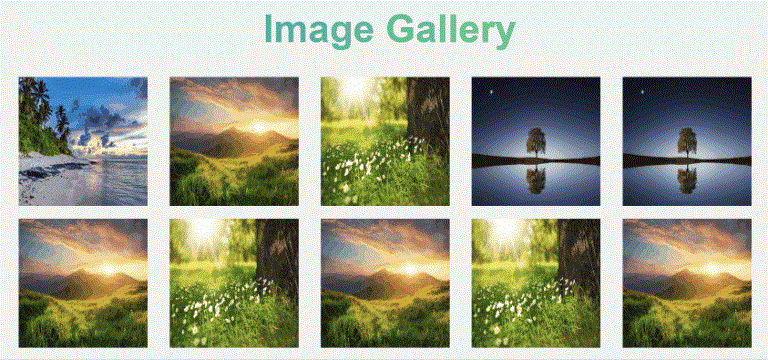
现在,正如您在输出中所看到的,我们使用HTML、CSS和JavaScript创建了一个图像库,它将帮助您创建一些小型网站项目。