 极客教程
极客教程HTML 如何在文本选择时显示自定义菜单
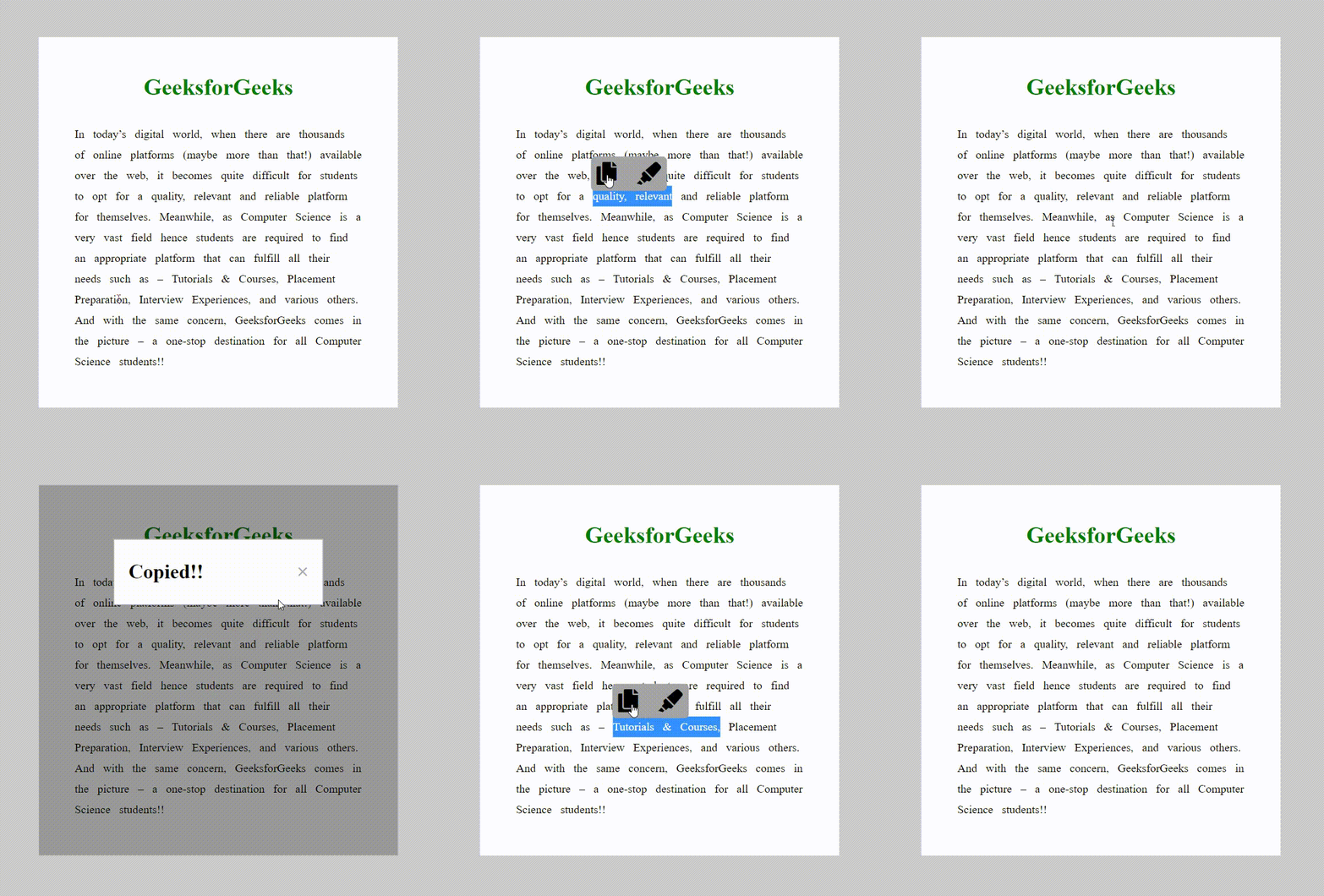
在网页上选择文本时显示一些选项(如复制、粘贴或分享)将非常好。选项菜单可以实现这一目标。基本上,它是一种根据用户活动(如选择文本)显示的图形用户界面。选择菜单提供了一系列不同的选项,你可以通过点击它们来访问。通常,这些可访问的选项是与所选对象相关的操作。你可能熟悉在选择任何网站上的文本时出现的不同类型的选择菜单。在本文中,我们将创建一个自定义/选择菜单,它漂浮在所选文本的正上方。
语法:
<div class="menu">
    <i class="fa fa-copy fa-2x"></i>
    <i class="fa fa-highlighter fa-2x"></i>
</div>
方法: 我们创建了一个非常简单的结构,包含2个div,第一个div中有一些虚拟文本可供选择,第一个div中嵌套着第二个div。第二个div是我们自定义的选择菜单,在选择文本时会出现。为了为菜单创建不同的选项,我们使用了font-awesome图标,这也会给菜单带来视觉上的愉悦感。您可以根据需要在选择菜单中添加任意数量的选项。但是在这里我们只添加了两个选项,第一个是 复制 ,第二个是 高亮 。 现在,让我们来了解JavaScript部分。首先,我们使用 document.getSelection() 来获取选择的字符串。如果选择的字符串不为空,则通过 getBoundingClientRect() 获取第一个div的位置,并将其放入 rect 变量中。使用 rect ,我们计算并分配选择菜单(第二个div)的顶部和左侧位置。这样,选择菜单就会在选中区域上方稍微居中显示。如果我们此时在页面上选择一些示例文本,选择菜单控件将显示在屏幕上。
示例:
HTML
<!DOCTYPE html>
<html lang="en">
  <head>
    <meta charset="UTF-8" />
    <meta http-equiv="X-UA-Compatible" content="IE=edge" />
    <meta name="viewport" content="width=device-width, initial-scale=1.0" />
    <title>Custom menu on text selection</title>
    <link
      rel="stylesheet"
      href=
"https://pro.fontawesome.com/releases/v5.10.0/css/all.css"
      integrity=
"sha384-AYmEC3Yw5cVb3ZcuHtOA93w35dYTsvhLPVnYs9eStHfGJvOvKxVfELGroGkvsg+p"
      crossorigin="anonymous"/>
    <style>
      body {
        position: absolute;
        top: 50%;
        left: 50%;
        transform: translate(-50%, -50%);
        background: #cccccc;
      }
      .text {
        width: 400px;
        min-height: 200px;
        background: #fff;
        padding: 20px 50px 50px 50px;
        position: relative;
        display: flex;
        flex-direction: column;
        justify-content: center;
        align-items: center;
        line-height: 1.8;
        word-spacing: 8px;
      }
      p {
        margin: 0;
      }
      h1 {
        user-select: none;
        color: green;
      }
      .menu {
        display: none;
        position: absolute;
        background: #a4a4a4;
        border-radius: 6px;
      }
      .menu i {
        color: #000;
        cursor: pointer;
        margin: 8px;
      }
      #output {
        position: absolute;
        opacity: 0.01;
        height: 0;
        overflow: hidden;
      }
      .popup {
        display: none;
        position: fixed;
        z-index: 1;
        left: 0;
        top: 0;
        width: 100%;
        height: 100%;
        overflow: auto;
        background-color: rgb(0, 0, 0);
        background-color: rgba(0, 0, 0, 0.4);
      }
      .popup-content {
        background-color: #fefefe;
        margin: 15% auto;
        padding: 20px;
        border: 1px solid #888;
        width: 50%;
        display: flex;
        align-items: center;
      }
      .close-btn {
        color: #aaa;
        font-size: 28px;
        font-weight: bold;
        margin-left: auto;
      }
      .close-btn:hover,
      .close-btn:focus {
        color: black;
        text-decoration: none;
        cursor: pointer;
      }
      .popup-content p {
        font-size: 28px;
        font-weight: bold;
      }
    </style>

    <script>
      var pageX, pageY;
      document.addEventListener("mouseup", () => {
        function copyfieldvalue() {
          var field = document.getElementById("output");
          field.focus();
          field.setSelectionRange(0, field.value.length);
          document.execCommand("copy");
        }

        let selection = document.getSelection();
        let selectedText = selection.toString();
        var menu = document.querySelector(".menu");
        if (selectedText !== "") {
          let rect = document.querySelector(".text").getBoundingClientRect();
          menu.style.display = "block";
          menu.style.left = pageX - Math.round(rect.left) + "px";
          menu.style.top = pageY - Math.round(rect.top) - 58 + "px";

          document.getElementById("output").innerHTML = selectedText;

          var popup = document.getElementById("mypopup");
          var copybtn = document.getElementById("copy-btn");

          copybtn.addEventListener("click", () => {
            copyfieldvalue();
            popup.style.display = "block";
          });

          var span = document.getElementsByClassName("close-btn")[0];

          span.addEventListener("click", () => {
            popup.style.display = "none";
          });

          window.addEventListener("click", (event) => {
            if (event.target == popup) {
              popup.style.display = "none";
            }
          });
        } else {
          menu.style.display = "none";
        }
      });
      document.addEventListener("mousedown", (e) => {
        pageX = e.pageX;
        pageY = e.pageY;
      });
    </script>
  </head>
  <body>
    <div class="text">
      <h1>GeeksforGeeks</h1>
      <p>
        In today’s digital world, when there are thousands of online platforms
        (maybe more than that!) available over the web, it becomes quite
        difficult for students to opt for a quality, relevant and reliable
        platform for themselves. Meanwhile, as Computer Science is a very vast
        field hence students are required to find an appropriate platform that
        can fulfill all their needs such as – Tutorials & Courses, Placement
        Preparation, Interview Experiences, and various others. And with the
        same concern, GeeksforGeeks comes in the picture – a one-stop
        destination for all Computer Science students!!
      </p>

      <div class="menu">
        <i class="fa fa-copy fa-2x" id="copy-btn"></i>
        <i class="fa fa-highlighter fa-2x" id="highlight-btn"></i>
      </div>
      <textarea id="output"></textarea>
      <div id="mypopup" class="popup">
        <div class="popup-content">
          <p>Copied!!</p>
          <span class="close-btn">×</span>
        </div>
      </div>
    </div>
  </body>
</html>
输出: