 极客教程
极客教程React MUI过渡工具
React MUI过渡组件 组件允许您定义一个组件状态到另一个状态的变化。尽管它最常用于动画组件的挂载和卸载,但它也可以用来描述原地过渡状态。你可以根据需要赋予这些状态目的和影响。
React MUI过渡中可用的组件:
- Collapse(折叠): “Collapse(折叠)”组件可用于创建手风琴、展开区域和其他需要显示和隐藏内容的UI元素。
- Fade(淡入淡出): “Fade(淡入淡出)”组件可用于创建模态框、吐司和其他需要以淡入淡出效果出现和消失的UI元素。它使用基于CSS不透明度的简单淡入淡出过渡,您可以使用“timeout”属性自定义过渡的持续时间和缓动效果。
- Grow(增长): “Grow(增长)”组件可用于创建展开或需要增长和收缩的元素。它使用基于CSS变换的简单缩放过渡,您可以使用“timeout”属性自定义过渡的持续时间和缓动效果。
- Slide: “Slide” 组件可以用于创建导航抽屉、模态框和其他需要滑动进出视图的 UI 元素。它使用基于 CSS transform 的简单滑动过渡,并且你可以使用“方向”、“超时时间”和“缓和”来自定义过渡的方向、持续时间和缓和方式。
- Zoom: “Zoom” 组件可以用于创建模态框、悬浮框和其他需要缩放进出的 UI 元素。它使用基于 CSS transform 的简单缩放过渡,并且你可以使用“超时时间”来自定义过渡的持续时间和缓和方式。
- 子元素要求: 子元素应包含所有需要过渡的内容,而“Transition”组件将处理该内容的动画。重要的是要知道,传递的子元素必须是 Transition 组件的直接子元素。
- TransitionGroup: “TransitionGroup”组件接受一个子元素,该子元素应该是一组“Transition”组件。它负责管理每个“Transition”组件的“in”属性,并确保动画同步和正确执行。
- TransitionComponent属性: “TransitionComponent”属性接受一个组件类或函数组件作为其值。组件类应该是一个有效的React组件,实现类似于内置的“Transition”组件的API,例如“in”属性和“timeout”属性。
- 性能和SEO:
- 性能: 动画对网页性能有重大影响,特别是如果没有正确实现。当使用“Transition”组件时,重要的是要确保动画流畅,不会导致页面无响应或变慢。
- 搜索引擎优化: 搜索引擎爬虫无法处理基于JavaScript的动画,因此它们可能无法正确索引使用这些动画的页面的内容。这意味着如果页面的主要内容被动画隐藏起来,搜索引擎可能无法正确索引该内容。
APIs: Material-UI库提供了几个用于处理“Transition”组件的API(比如“Fade”,“Grow”,“Slide”,“Collapse”和“Zoom”)。
语法:
<Collapse in={ checked } />
首先,我们将从在VS Code中创建一个React应用开始。
步骤1: 通过在任何命令行中写入以下代码来创建React应用。
npx create-react-app app_name
步骤2: 然后,我们必须进入我们要工作的文件夹。
cd project_name
步骤3: 我们将安装 @mui/material 库来进行我们的项目工作。
npm install @mui/material @emotion/react @emotion/styled
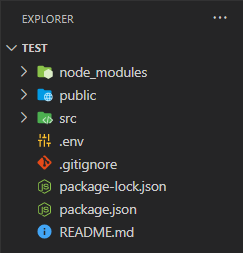
项目结构: 在创建React App并安装所有依赖项后,文件夹结构将类似下面给出的图示。
运行应用程序的步骤: 在终端中输入以下代码以运行服务器:
npm start
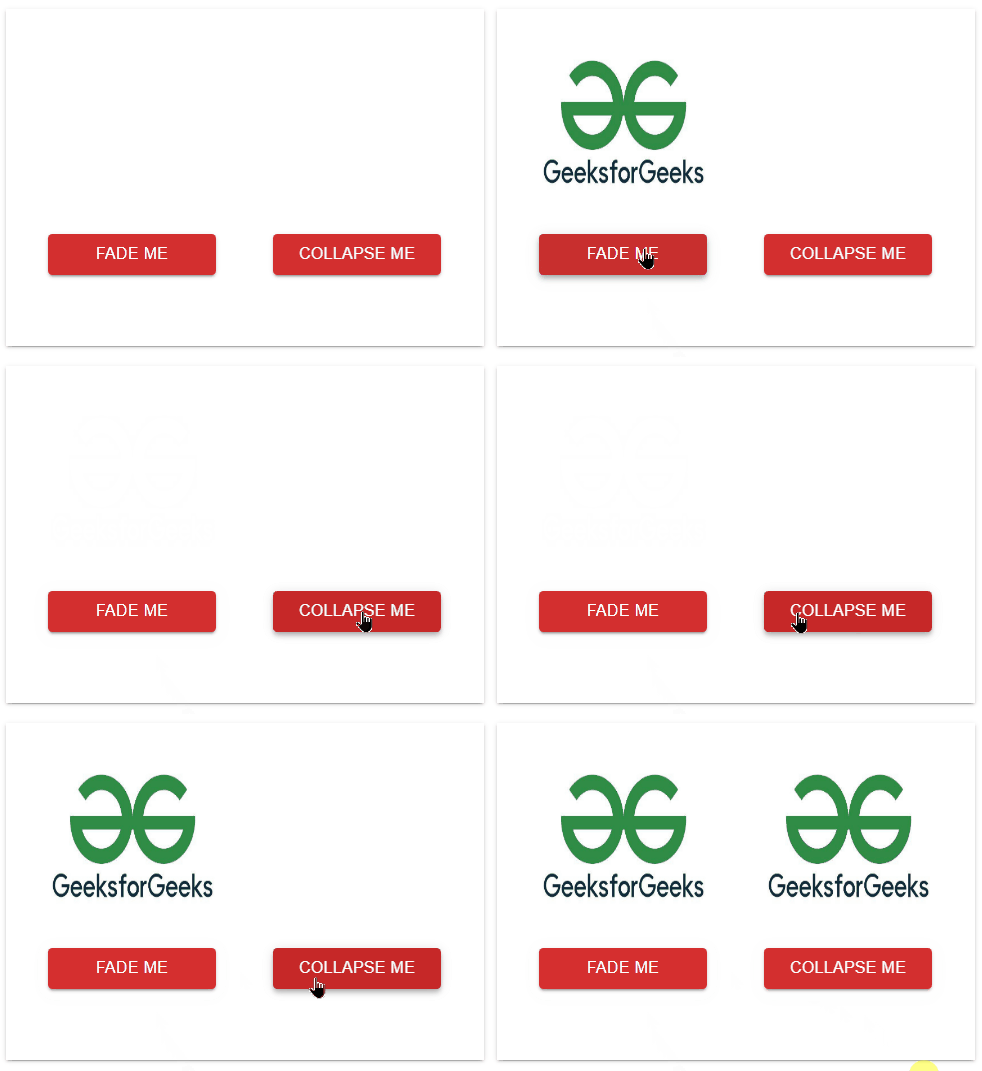
示例1: 下面是使用淡入淡出和折叠效果的Transition组件的代码。
import React, { useState } from 'react';
import { Box, Collapse, Fade, Button } from '@mui/material';

const Transition = () => {
    const [fade, setFade] = useState(false);
    const [collapse, setCollapse] = useState(false);
    const logo =
'https://media.geeksforgeeks.org/wp-content/uploads/20230104121959/logo.jpg';
    const handleFade = () => {
        setFade((fade) => !fade);
    }

    const handleCollapse = () => {
        setCollapse((collapse) => !collapse);
    }

    return (
        <Box sx={{
            boxShadow: 2, margin: '20px', height: '300px',
            display: 'flex', width: '425px',
            justifyContent: 'center'
        }}>
            <div style={{
                display: 'flex',
                flexDirection: 'column', alignItems: 'center'
            }}>
                <Fade in={fade}>
                    <img src={logo} alt='' width='200px'
                        height='200px' />
                </Fade>
                <Button variant='contained' color='error'
                    sx={{ width: '150px', alignItems: 'center' }}
                    onClick={handleFade}>fade Me</Button>
            </div>
            <div style={{
                display: 'flex', flexDirection: 'column',
                alignItems: 'center'
            }}>
                <Collapse in={collapse}>
                    <img src={logo} alt='' width='200px'
                        height='200px' />
                </Collapse>
                <Button variant='contained'
                    color='error' sx={{
                        width: '150px',
                        position: 'fixed', marginTop: '200px'
                    }}
                    onClick={handleCollapse}>Collapse Me</Button>
            </div>
        </Box>
    );
}

export default Transition;
输出:
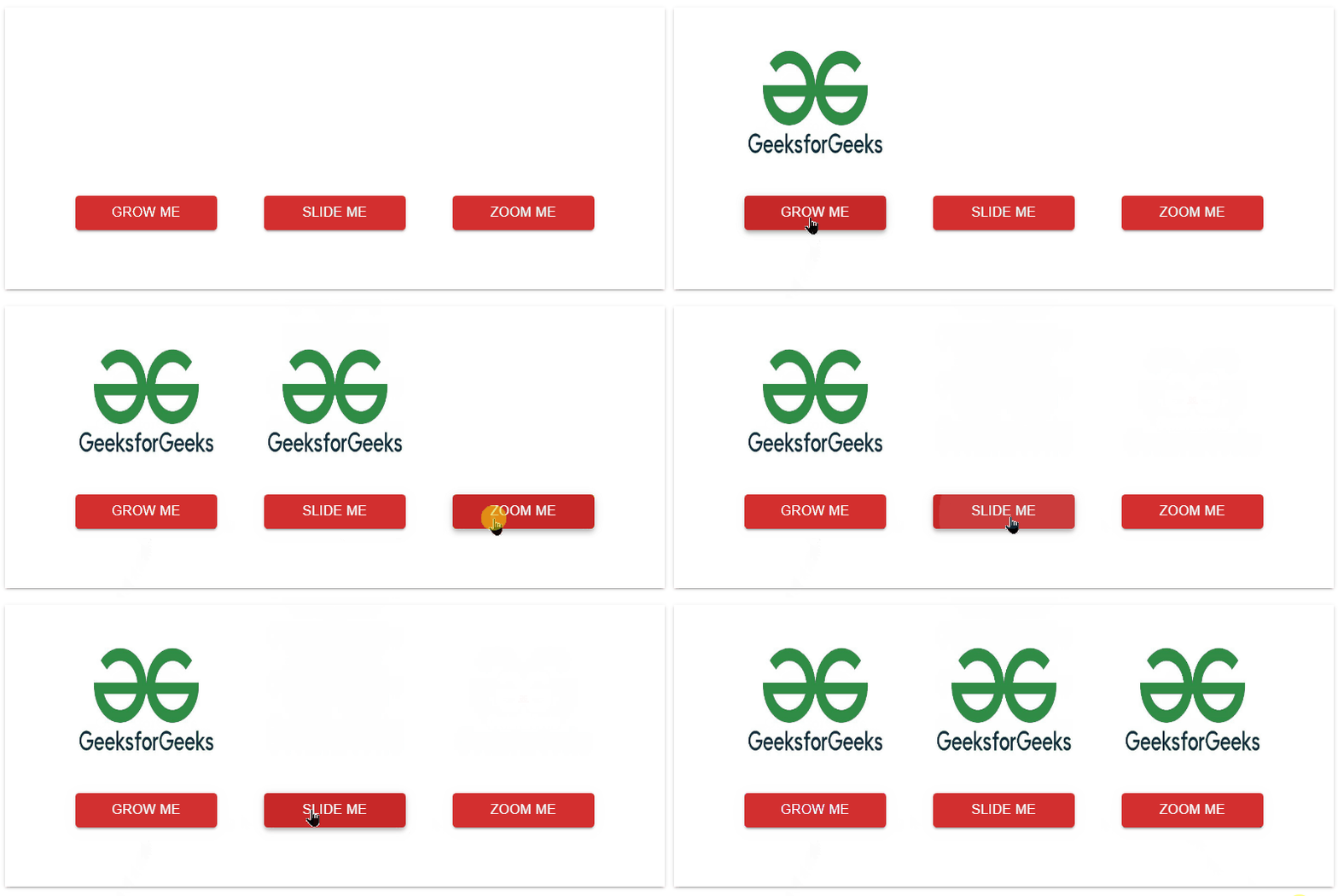
示例2: 下面是具有 Grow、Slide 和 Zoom 效果的 Transition 组件的代码。
import React, { useState } from 'react';
import { Box, Grow, Slide, Zoom, Button } from '@mui/material';

const Transition = () => {
    const [grow, setGrow] = useState(false);
    const [slide, setSlide] = useState(false);
    const [zoom, setZoom] = useState(false);
    const logo =
'https://media.geeksforgeeks.org/wp-content/uploads/20230104121959/logo.jpg';
    const handleGrow = () => {
        setGrow((grow) => !grow);
    }

    const handleSlide = () => {
        setSlide((slide) => !slide);
    }

    const handleZoom = () => {
        setZoom((zoom) => !zoom);
    }

    return (
        <Box sx={{ boxShadow: 2, margin: '20px', height: '300px',
            display: 'flex', width: '700px',
            justifyContent: 'center' }}>
            <div style={{ display: 'flex',
                flexDirection: 'column',
                alignItems: 'center' }}>
                <Grow in={grow}>
                    <img src={logo} alt='' width='200px'
                        height='200px' />
                </Grow>
                <Button variant='contained' color='error'
                    sx={{ width: '150px', alignItems: 'center' }}
                    onClick={handleGrow}>grow Me</Button>
            </div>
            <div style={{ display: 'flex', flexDirection: 'column',
                alignItems: 'center' }}>
                <Slide in={slide}>
                    <img src={logo} alt=''
                        width='200px' height='200px' />
                </Slide>
                <Button variant='contained' color='error'
                    sx={{ width: '150px', position: 'fixed',
                    marginTop: '200px' }}
                    onClick={handleSlide}>slide Me</Button>
            </div>
            <div style={{ display: 'flex',
                flexDirection: 'column', alignItems: 'center' }}>
                <Zoom in={zoom}>
                    <img src={logo} alt=''
                        width='200px' height='200px' />
                </Zoom>
                <Button variant='contained' color='error'
                    sx={{ width: '150px', position: 'fixed',
                    marginTop: '200px' }} onClick={handleZoom}>
                        Zoom Me
                </Button>
            </div>
        </Box>
    );
}

export default Transition;
输出:
参考链接: https://mui.com/material-ui/transitions/